# June 24 Release (v58)

## 📢 <mark style="color:blue;">Announcing the June Release</mark>

Our latest release brings a fresh new look to the entire app, enhancing your user experience with a sleek and modern UI. We've also introduced powerful new features, including **Fetch and Save Salesforce Data**, **Object Picker**, **Configure**, Grid **Creation**, **Save and Refresh Grid**, and the **Toolbox**. These additions, alongside several critical bug fixes, ensure you have the tools and reliability needed to streamline your workflow and achieve your goals more efficiently than ever before. Experience the enhanced capabilities of Valorx Fusion today!

***

## ➕ <mark style="color:blue;">What's New?</mark>

### ⚡<mark style="color:purple;">Express Mode</mark>

**Express Mode** introduces amazing features: **Fetch Salesforce Data in seconds**. These tools enable users to retrieve, save, and import data from Salesforce in split seconds.

<div align="left"><figure><img src="https://2472585788-files.gitbook.io/~/files/v0/b/gitbook-x-prod.appspot.com/o/spaces%2F-MFqFFf4143HS0_Wagnz%2Fuploads%2Fv1eZZVz4AxpG84DfW6PH%2FRelease%20Notes%201.%20Home%20Page.png?alt=media&#x26;token=fe0cf628-7670-4f34-8922-40ac7057c541" alt=""><figcaption><p>Express Mode</p></figcaption></figure></div>

> To start using **Express Mode**, click the "**Select**" button.

### <mark style="color:purple;">Fetch and Save Salesforce Data</mark>

The **Fetch and Save Salesforce Data** feature enables users to fetch Salesforce data and save it directly to the spreadsheet.

<div align="left"><figure><img src="https://2472585788-files.gitbook.io/~/files/v0/b/gitbook-x-prod.appspot.com/o/spaces%2F-MFqFFf4143HS0_Wagnz%2Fuploads%2FBfTFDR9KKXkwL9u1Di9D%2FRelease%20Notes%204.%20Fetch%20and%20Save%20Saleforce%20Data.png?alt=media&#x26;token=02f86501-7e77-45a5-a28b-359b06c7bead" alt=""><figcaption><p>Fetch and Save Salesforce Data</p></figcaption></figure></div>

### <mark style="color:purple;">Object Selector</mark>

The **Object Picker** feature enables users to easily select any Salesforce object and add it to the spreadsheet. This functionality simplifies the process of selecting and incorporating objects into the spreadsheet.

<div align="left"><figure><img src="https://2472585788-files.gitbook.io/~/files/v0/b/gitbook-x-prod.appspot.com/o/spaces%2F-MFqFFf4143HS0_Wagnz%2Fuploads%2F36Hb4K8W7wdYPq3Lok3c%2FRelease%20Notes%205.%20Object%20Picker.png?alt=media&#x26;token=66f637c4-477c-404f-8f15-86f65cf02419" alt=""><figcaption><p>Object Selector</p></figcaption></figure></div>

### <mark style="color:purple;">Configure Grid</mark>

In Express Mode, users can **configure** spreadsheet records by **applying filters**, **sorting**, **adding fields** in the field selector, and **renaming grids**.

<div><figure><img src="https://2472585788-files.gitbook.io/~/files/v0/b/gitbook-x-prod.appspot.com/o/spaces%2F-MFqFFf4143HS0_Wagnz%2Fuploads%2FTnSx930Nno4MgYUJZOka%2FRelease%20Notes%206.%20Configure.png?alt=media&#x26;token=4d6522dc-477c-4a41-9e28-52c94e77b487" alt=""><figcaption><p>Configurations</p></figcaption></figure> <figure><img src="https://2472585788-files.gitbook.io/~/files/v0/b/gitbook-x-prod.appspot.com/o/spaces%2F-MFqFFf4143HS0_Wagnz%2Fuploads%2Fg8yOzjqqJXNdtCsBRHkg%2FRelease%20Notes%207.%20Field%20Selector.png?alt=media&#x26;token=d99edfad-94ad-45b1-86bc-90c4f06b987f" alt=""><figcaption><p>Field selector</p></figcaption></figure></div>

> Here are the configurations that can be done:
>
> 1. **Rename Grid**: Click to rename the grid name.
> 2. **Field Selector**: Click "**+ Add**" button to access the field selector. Here user can select object fields.
> 3. **Filters**: Click the Filters button to apply filters to the column.
> 4. **Sort**: Click the Sort button to sort the records.
> 5. **Global Grid**: Enable this option to set grid as global.

### <mark style="color:purple;">Grid Manager</mark>

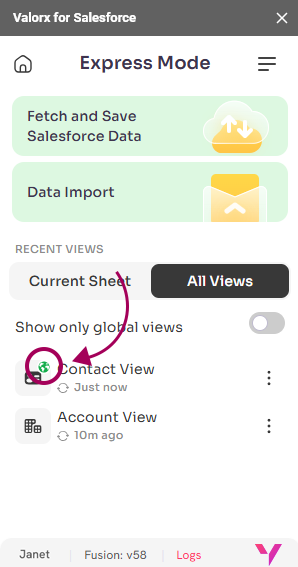
In Express Mode, grid can be categorized as either **custom grid** or **global grid**. A **custom grid** refers to all grids **created by the user**. A g**lobal grid**, on the other hand, is a grid created by **any user** within the same organization who has **set the grid to be global**. The grid with this "**Earth**" icon ![](https://2472585788-files.gitbook.io/~/files/v0/b/gitbook-x-prod.appspot.com/o/spaces%2F-MFqFFf4143HS0_Wagnz%2Fuploads%2FYm3Dj2Zn3ghwoQjziNQN%2FGlobal%20Icon.png?alt=media\&token=af5e2993-a6cf-4764-97ad-1aa72c2e0ca0) indicates that it has been set to global.

<div align="left"><figure><img src="https://2472585788-files.gitbook.io/~/files/v0/b/gitbook-x-prod.appspot.com/o/spaces%2F-MFqFFf4143HS0_Wagnz%2Fuploads%2F3RxMfLE8L7p80tZ5qB9i%2FRelease%20Notes%208.%20View%20Creation.png?alt=media&#x26;token=efece975-77ad-44d4-ab50-0b3260e410d3" alt=""><figcaption><p>Grid Manager</p></figcaption></figure></div>

### <mark style="color:purple;">Save and Refresh Data</mark>

In the "Save and Refresh Data" page, under the **Control section**, there are **two buttons**: "**Save**" and "**Refresh Contact Grid**," which simplify data management by allowing users to **save changes** and **refresh the grid** effortlessly.

The "**Save**" allows user to **save changes back to Salesforce in real-time**.

<div align="left"><figure><img src="https://2472585788-files.gitbook.io/~/files/v0/b/gitbook-x-prod.appspot.com/o/spaces%2F-MFqFFf4143HS0_Wagnz%2Fuploads%2FWBAzW7jeDvYEdkc3q6fp%2FRelease%20Notes%209.%20Save%20and%20Refresh%20Data%20page.png?alt=media&#x26;token=a855a61a-47e4-4c4b-b0c6-401802382049" alt=""><figcaption><p>Save and Refresh Data</p></figcaption></figure></div>

The "**Refresh Contact Grid**" button enables users to **refresh** and **locate** the desired grid by selecting it. If no grid is selected, it defaults to the current grid chosen by the user.

<div align="left"><figure><img src="https://2472585788-files.gitbook.io/~/files/v0/b/gitbook-x-prod.appspot.com/o/spaces%2F-MFqFFf4143HS0_Wagnz%2Fuploads%2FktXoO9ogtnt9aITv7Dcz%2FRelease%20Notes%2010.%20Refresh%20Contact%20View%20button.png?alt=media&#x26;token=424a47bc-7a72-4ec1-a125-700c6786b6f0" alt=""><figcaption><p>Refresh Contact Grid</p></figcaption></figure></div>

### <mark style="color:purple;">Toolbox</mark>

In the "Save and Refresh Data" page, under the Toolbox section, there are four buttons: "**Insert Record**," "**Clear Record**," "**Delete Record**," and "**Lookup**," facilitating easy management and modification of records.

<div align="left"><figure><img src="https://2472585788-files.gitbook.io/~/files/v0/b/gitbook-x-prod.appspot.com/o/spaces%2F-MFqFFf4143HS0_Wagnz%2Fuploads%2FNRzvG4YXfPjsWQThLgAg%2FRelease%20Notes%2011.%20Toolbox.png?alt=media&#x26;token=8da0a86b-ecf4-4b2d-8a95-782643923c7f" alt=""><figcaption><p>Toolbox</p></figcaption></figure></div>

> * **Insert Records**: Create a new record within an object by adding rows.
> * **Clear Records**: Clear all the records from the grids.
> * **Delete Records**: Delete the rows from the record.
> * **Lookup**: Allows users to link one record to another record in a related object

### 🆔<mark style="color:purple;">My Account</mark>

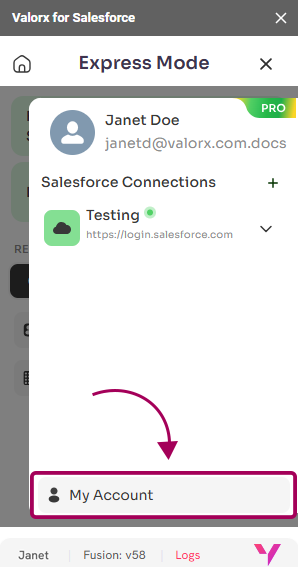
In the Salesforce Connections page, at the bottom, you'll find a "**My Account**" button. Clicking on it opens the Valorx sign in page, where you can log in with your Salesforce or Valorx account. Here, you can access **General**, **Subscriptions**, **Licenses**, **Environments**, and **Team Members** details.

<div align="left"><figure><img src="https://2472585788-files.gitbook.io/~/files/v0/b/gitbook-x-prod.appspot.com/o/spaces%2F-MFqFFf4143HS0_Wagnz%2Fuploads%2F9Hc3KQijXH3LH5B9mZoq%2FRelease%20Notes%2014.%20My%20Account.png?alt=media&#x26;token=a5159abb-a517-44be-a03b-f48c5368f558" alt=""><figcaption><p>My Account</p></figcaption></figure></div>

#### General

In the **General** section, the user's general information is displayed, including company name, name, email, and address. Only the **Admin** can edit this information, except for the Name and Email fields, which cannot be edited. Other users can edit the remaining fields.

<figure><img src="https://2472585788-files.gitbook.io/~/files/v0/b/gitbook-x-prod.appspot.com/o/spaces%2F-MFqFFf4143HS0_Wagnz%2Fuploads%2FJdiHOoxxxBhInXKRVmN2%2FMy%20Account%201.%20General%20Information.png?alt=media&#x26;token=5eedb364-bf95-4a98-8684-60bd401811d7" alt=""><figcaption><p>Geberal Information</p></figcaption></figure>

#### Subscriptions

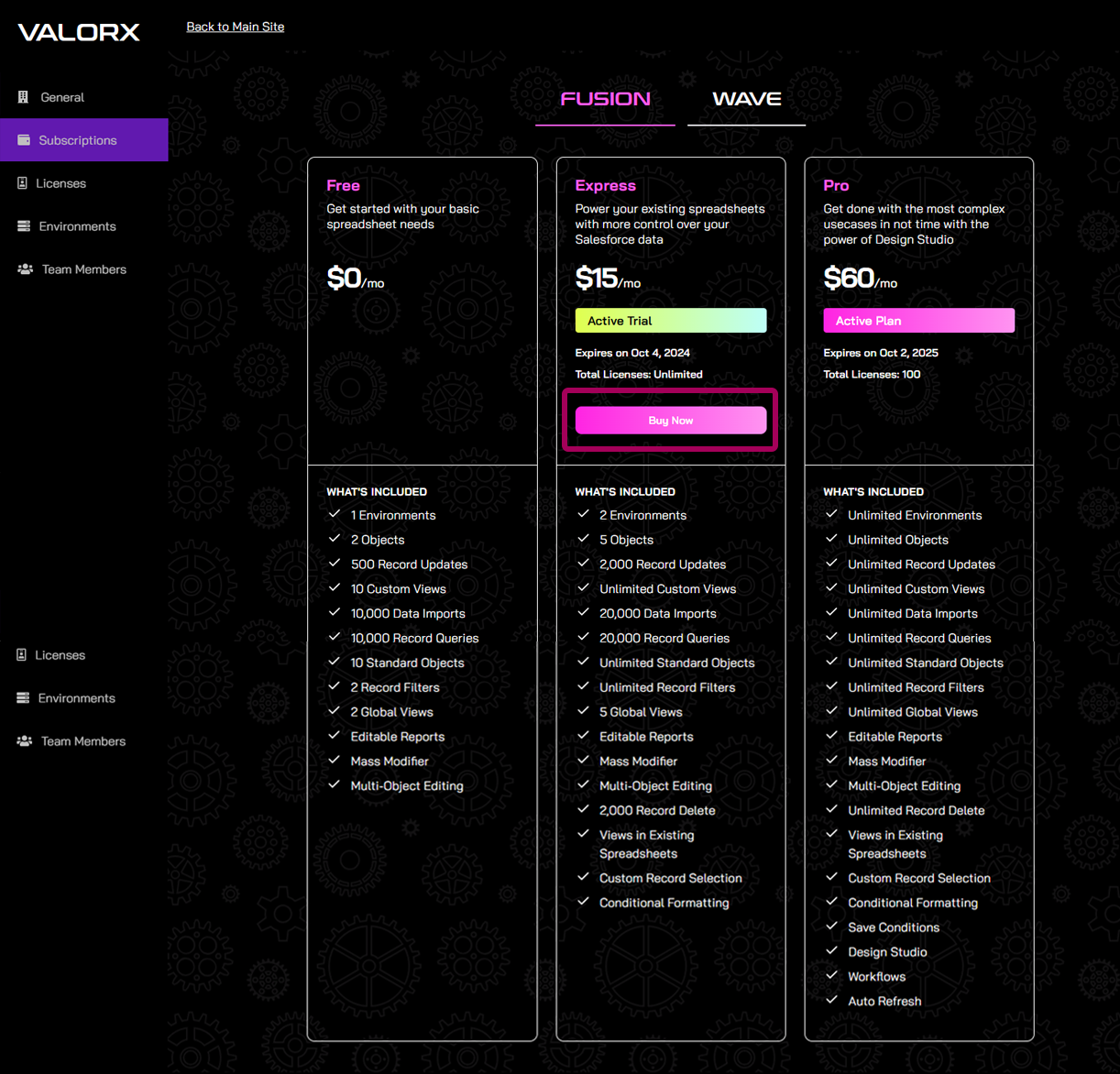
The Subscriptions section displays all the **products available for subscription**, along with the different benefits each subscription offers. Click "**Buy Now**" to subscribe to our product.

<figure><img src="https://2472585788-files.gitbook.io/~/files/v0/b/gitbook-x-prod.appspot.com/o/spaces%2F-MFqFFf4143HS0_Wagnz%2Fuploads%2FP1X9xmOXna55zZ24Z5L3%2FMy%20Account%202.%20Subscriptions.png?alt=media&#x26;token=59c34943-a263-4d78-b937-527192e8489b" alt=""><figcaption><p>Subscriptions page</p></figcaption></figure>

#### Licenses

The Licenses section displays all licensed users, including their names, emails, and roles. The Admin can **edit a user's role** by clicking on the pencil icon.

<figure><img src="https://2472585788-files.gitbook.io/~/files/v0/b/gitbook-x-prod.appspot.com/o/spaces%2F-MFqFFf4143HS0_Wagnz%2Fuploads%2FufMnlmfCmt1cxIEb3PvF%2FMy%20Account%203.Licenses.png?alt=media&#x26;token=25b2ecd8-b11d-4237-9a43-0a7ab298d356" alt=""><figcaption><p>Licenses page</p></figcaption></figure>

#### Environments

The Environments section displays the environments created by the user along with their environment IDs. The Admin can also update the CRM type and environment type for each environment.

<figure><img src="https://2472585788-files.gitbook.io/~/files/v0/b/gitbook-x-prod.appspot.com/o/spaces%2F-MFqFFf4143HS0_Wagnz%2Fuploads%2FkVow8PvNp6ujUnfEIqFU%2FMy%20Account%204.Environments.png?alt=media&#x26;token=bbf04cc0-9a2d-4252-9b17-a620975e78b1" alt=""><figcaption><p>Environment page</p></figcaption></figure>

#### Team Members

In the Team Members section, team member names, emails, and access levels are displayed. The Admin can edit a user's access level to either **Standard** or **Admin**, or delete the user.

<figure><img src="https://2472585788-files.gitbook.io/~/files/v0/b/gitbook-x-prod.appspot.com/o/spaces%2F-MFqFFf4143HS0_Wagnz%2Fuploads%2FwbMfh1cHLjYkVzzUz2cc%2FMy%20Account%205.Team%20Members.png?alt=media&#x26;token=1d4c5353-ba8d-47f8-81f0-ae4624083326" alt=""><figcaption><p>Team Member page</p></figcaption></figure>

***

## ✨ <mark style="color:blue;">Enhanced UI / UX Design</mark>

### <mark style="color:purple;">Home Page</mark>

🎉 Exciting News! We've enhanced our product page with a brand-new, user-friendly design! Navigating and exploring our offerings is now more intuitive than ever. Dive in and experience the enhanced features that make using our product a breeze. Discover a new level of ease and efficiency today!

<div align="left"><figure><img src="https://2472585788-files.gitbook.io/~/files/v0/b/gitbook-x-prod.appspot.com/o/spaces%2F-MFqFFf4143HS0_Wagnz%2Fuploads%2Fv1eZZVz4AxpG84DfW6PH%2FRelease%20Notes%201.%20Home%20Page.png?alt=media&#x26;token=fe0cf628-7670-4f34-8922-40ac7057c541" alt=""><figcaption><p>Home page</p></figcaption></figure></div>

***

## 🐞<mark style="color:blue;">Bug Fixes</mark>

* We've resolved an important issue in our latest release! Previously, Fusion behaved differently on Windows and Mac when handling Picklist values versus their API Names.
* Now, clicking the execute button consistently shows "Pass Filter" across both platforms.
* We've fixed a critical issue affecting Global Search on Mac when querying objects with "Long Text Area" fields checked in the Display checkbox.
* Now, Global Search accurately filters results based on your queries.