> For the complete documentation index, see [llms.txt](https://docs.valorx.com/llms.txt). Markdown versions of documentation pages are available by appending `.md` to page URLs; this page is available as [Markdown](https://docs.valorx.com/valorx-fusion/versions-and-release-notes/windows/older-versions/windows/fusion-version-13.md).
# Nov 22 Release (v13)
November 2022 Release
Announcing **Valorx Fusion – Nov 22 Release (v13)**
Valorx is back with another updated and enhanced version of Valorx Fusion, and this is our first release of 2022.
Valorx **Fusion v13** is a feature-packed release with a host of new features, enhancements, and bug fixes to give you all a smooth and easy usage of Valorx Fusion. This release is another major release where we include many latest additions like **Mass Modifier**, **Offline Mode**, and many more enhancements made to our **Maps**, **Tasks**, **Workflow and UX**.
#### New Features in this release
Valorx is very excited to be back with new features in this release for **Fusion v13**. In this release, we have added new features to our Task, Workflow, and Maps along with a few new features to make it easy for all.
#### Mass Modifier
Mass Modifier is a new feature introduced in our **V13**. Mass Modifier helps Designers or users when they have huge or bulk data to modify or when they want to apply changes to the data. Users need to enable this feature under **Workflow and UX** to find this on Valorx Fusion Runtime Ribbon tab.
Users need to follow the below steps once Mass Modifier is enabled:
* Open an App in Runtime and click on **Mass Modifier**.
* A **Mass Modifier** window will open which will have the below fields.
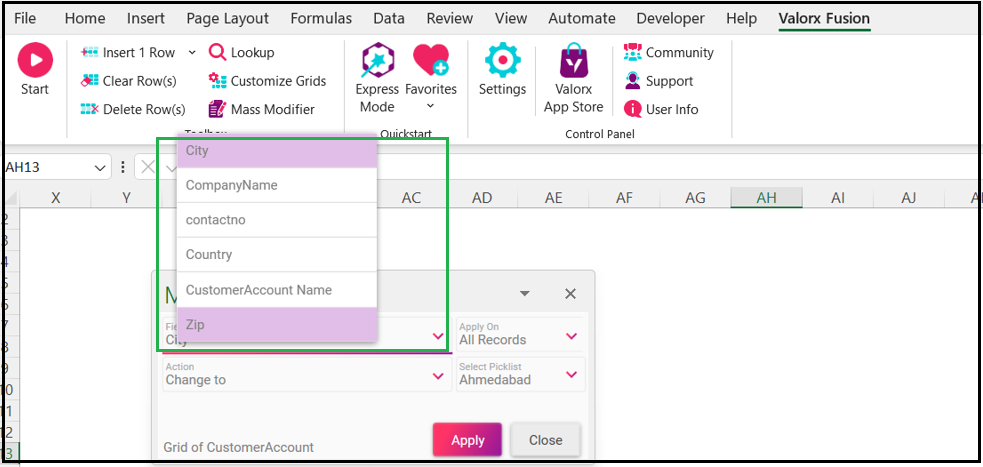
* Select the name of the field from **Field Name** drop-down menu. It will show the selected field by default.
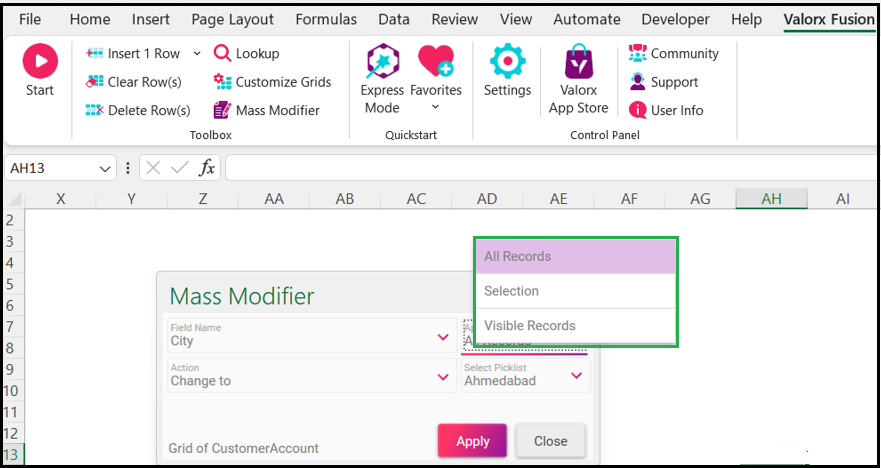
* Select **Apply On** from the drop-down menu.
1. **All Records** – It will apply the changes to all the records
2. **Selection** – It will apply the changes to the records selected
3. **Visible Records** - Changes are applied to those records which are currently visible on the excel sheet
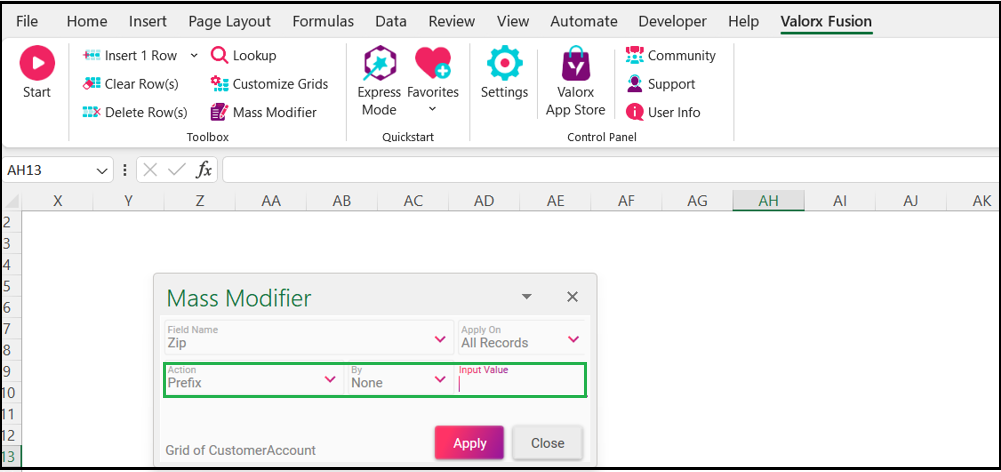
* Select **Action** from the drop-down menu.
***Note***: Always provide the **Input Value** when you select Change to, Suffix, or Prefix as your Action.
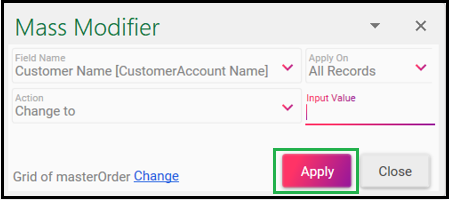
* Click **Change** to select the Grid of your Apps on that worksheet. It will display all the **Maps** available for that App.
* Click **Apply** to find the changes made.
#### Run Workflows Offline
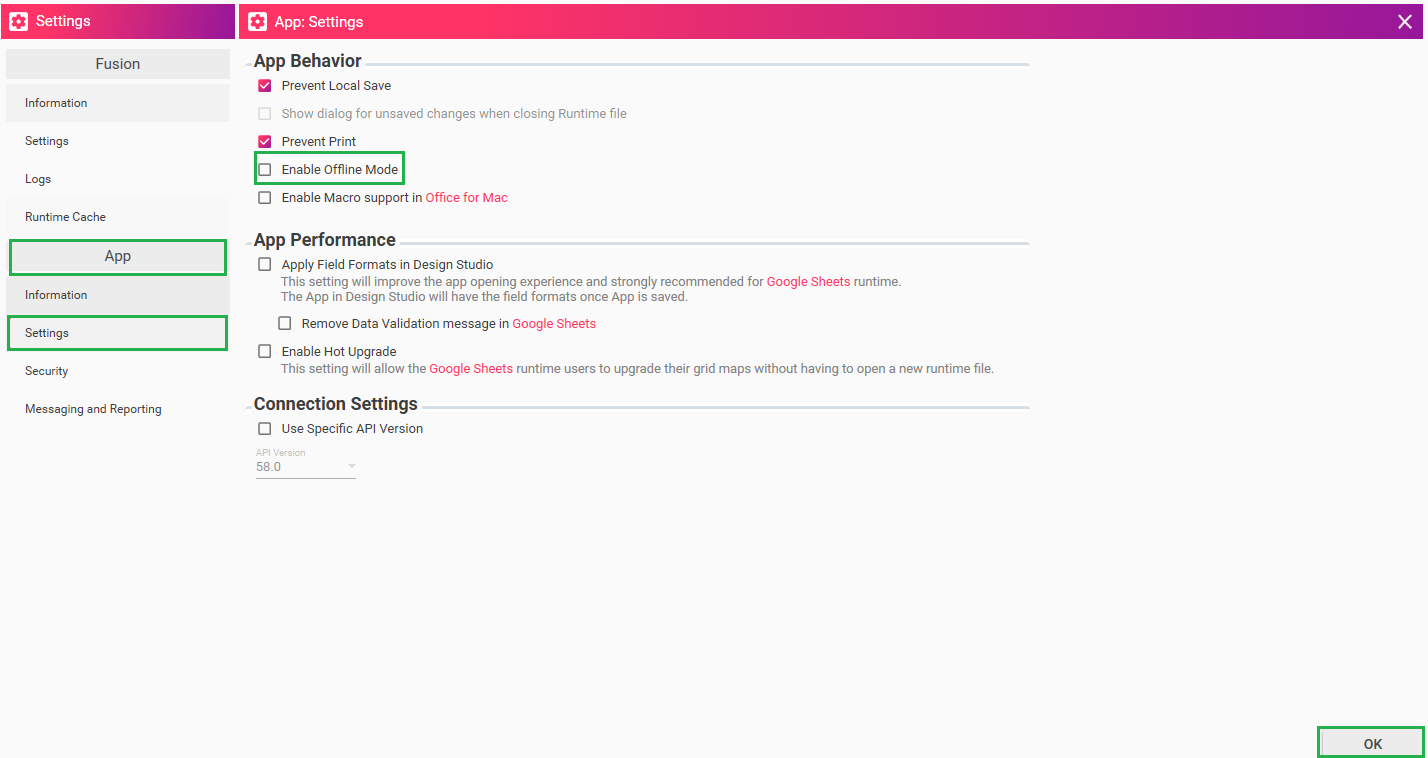
**Offline Mode** for Workflow Ux is one of the important features which we have implemented in **V13**. Offline mode will help the users to use the app even if they are offline and it will avoid many steps. Users will always have the option to go back **Online**. Users need to first enable this offline mode from **Workflow and UX** and **Settings**.
Follow the below steps to enable the offline mode from **Settings**.
* [**Open an App in Design Studio**](/valorx-fusion/design-studio/open-an-app-in-design-studio.md).
* Click **Settings** from the **Valorx Fusion** ribbon tab.
* Go to App Settings and select “**Enable Offline Mode**” and click **Ok**.
Follow the below steps to enable the offline mode from **Workflow and UX**.
* Open an App from Design Studio and click on **Workflow and UX** from the **Valorx Fusion** ribbon button.
* Open the **Workflow** now on the right-hand side of the workflow. Click the edit button  under Workflow Settings.
* Check in the option for "**Run while going Offline**".
* Click **Save**.
Now, open the App in Runtime mode and save the app in desired location. Users will find two options when they open the saved file.
Connect the app with any one of the two options:
1. **Connect** - This will connect you to the app in Design Studio.
2. **Continue** **Offline** – This will open the Runtime Saved file and Users can make the changes to the App.
***Note***: Users can go online when they want by clicking on “Go Online” this will again connect us to Design Studio.
#### Enhancements
* **Sign-In** experience has been enhanced and we have removed the dependency from **Valorx Home**.
* **V12** has 20 as the workflow decision threshold count which has been increased to 100 in **V13**.
* Faster Runtime experience to launch App.
* Added an additional column in the "Task List" view to show the name of the Macro.
* User Selection will now have “Equal” as the default operator when the picklist is marked for display.
* Salesforce login will now show a proper error message when the login fails due to insufficient OAuth access.
* Maps will now support multi-level record type picklist dependency.
#### Bug Fixes
* “Save as App” button gets enabled when users switch between the worksheets under Express Mode.
* Save App breaks and it is not repairable with full Map validation.
* Single app creates duplicate button groups on Runtime when the app is saved in Express Mode.
* Login session is not getting refreshed after expiration.
* Grid Map Auto filter disappears after inserting a row on an empty grid.
* Valorx Admin and Access Control tabs are throwing an error while clicking on the Profile (In) icon.
* Grid Map preview is unable to load records while placing the Spacer comments as blank.
* Grid map fails to save when it's moved horizontally on the same row directly in excel.
* **Start**, **Settings**, **Workflow**, etc. screens are getting smaller at the normally recommended display resolution and due to this, a horizontal scroll bar appears on some screens.
* Refresh Ribbon task is not working when a user tries to configure the rule with Date related field using the 'Between' operator.
* Start and end date values in Filters are getting changed by gaining one more day when a query task is opened.
* Date field value in Filters is getting blank after opening the existing query task.
* Exit step is not exiting the workflow however, it goes under the step defined under the "False" button.
* Users with German or Spanish locale are not able to auto-update due to the regional settings.
* “Clear All” and “Clear Record Id” from Clear Task are not able to clear the grid when the worksheet is protected.
* Maps screen automatically scrolls down when opened in edit mode.
* Users can find “Document task failed” however, there are no logs found when it fails from Salesforce.
* Icon name is not displaying after selecting the icon from Valorx Icon Store.
* “No Records Found” icon is not disappearing after clicking on the Close or Cross icon at Access Control.
* An error appears when the user selects the cells and applies Mass Modifier with a visible record using protected sheets.
* Save task takes longer time than expected when lookups are not found.
#### **Product Collaterals**
1. Get the latest windows client**:** [**Valorx client**](https://api.valorx.com/api/download/latest)
2. Valorx Managed Package: [**AppExchange**](https://appexchange.salesforce.com/appxListingDetail?listingId=a0N3A00000G0y2PUAR)
3. Valorx App Store: [**Checkout**](https://valorx.com/valorx-app-store/) the productivity Apps
4. Valorx for Sheets add-on: [**GSuite Marketplace**](https://gsuite.google.com/marketplace/app/valorx_fusion/823192635690)
5. Valorx for Mac: [**Microsoft AppSource**](https://appsource.microsoft.com/en-us/product/office/WA200001612?tab=Overview)
#### **Contact us**
If you have any questions or feedback, please visit our [forum](https://spectrum.chat/valorx) or [Valorx Support page](https://valorx.com/support/). We are fully committed to enhancing and complimenting your CRM experience and look forward to hearing from you!