# Matrix Launcher

The Matrix Launcher managed package provides users with a seamless way to launch Matrix from within Salesforce. Matrix is currently offered as a browser extension, and this managed package allows Designers to configure a button and associate the correct Matrix to be launched.

*Note: This managed package is not available on AppExchange and can be downloaded from this* [*link*](https://valorx-docs-dev-ed.develop.lightning.force.com/packagingSetupUI/ipLanding.app?apvId=04t5e000000zbgfAAA)*.*

## **Prerequisites**

Ensure that the **Valorx Wave extension is installed in your browser**.

* [**Valorx Wave Browser Extension (**&#x47;oogle Chrome ![](https://2237973035-files.gitbook.io/~/files/v0/b/gitbook-x-prod.appspot.com/o/spaces%2F65f4C4H8V5e0YV342mwp%2Fuploads%2FDOAGE1eiCpN5ieSwBmws%2FChrome%20Icon.png?alt=media\&token=e174d2ab-75a5-4dc5-b1b3-5dcc7750dada) and Microsoft Edge ![](https://2237973035-files.gitbook.io/~/files/v0/b/gitbook-x-prod.appspot.com/o/spaces%2F65f4C4H8V5e0YV342mwp%2Fuploads%2Fbk5bvPMZK7pX66D3pf37%2FEdge%20Icon.png?alt=media\&token=a542f500-21e9-4680-aa53-5a37da1ebbb8)**)**](https://chromewebstore.google.com/detail/valorx-wave/ihnfcoeldnfmhlcbimlfncenknbbfibf?hl=en-US\&utm_source=ext_sidebar\&pli=1)

If the Valorx Wave extension is not installed, complete the installation before proceeding with the setup of the Matrix Launcher.

## Setup Instructions for Matrix Launcher Managed Package

Follow the steps below to set up the Matrix Launcher from Salesforce:

1. **Log in to your** [**Salesforce Org**](https://login.salesforce.com/) using an Administrator account.

2. **Install the Matrix Launcher Managed Package**:
   * Click [here](https://login.salesforce.com/packagingSetupUI/ipLanding.app?apvId=04t5e000000zbgfAAA) to download and install the Matrix Launcher.
   * Choose one of the installation options:
     * **Install for All Users**: Recommended if all users need access to the Matrix Launcher.
     * **Install for Admins Only**: Restrict access to administrators only.<br>

       <div align="left"><figure><img src="https://2237973035-files.gitbook.io/~/files/v0/b/gitbook-x-prod.appspot.com/o/spaces%2F65f4C4H8V5e0YV342mwp%2Fuploads%2FIsnrWjZOMQkpVT3Qklou%2FInstall%20Matrix%20Launcher%20(All%20User).png?alt=media&#x26;token=3aad1251-3661-4874-8d80-d821bd6c436f" alt=""><figcaption><p>Install Matrix Launcher</p></figcaption></figure></div>

3. **Acknowledge Terms and Conditions**:
   * Select the necessary options to acknowledge the terms, then click the **Install** button.<br>

     <div align="left"><figure><img src="https://2237973035-files.gitbook.io/~/files/v0/b/gitbook-x-prod.appspot.com/o/spaces%2F65f4C4H8V5e0YV342mwp%2Fuploads%2FkftmLPWWBrNEa7MX2GAn%2FInstall%20Package.gif?alt=media&#x26;token=4747a1a5-5b70-49ca-87d9-ccc8ae23e66c" alt=""><figcaption></figcaption></figure></div>

4. **Check Installation Status**:
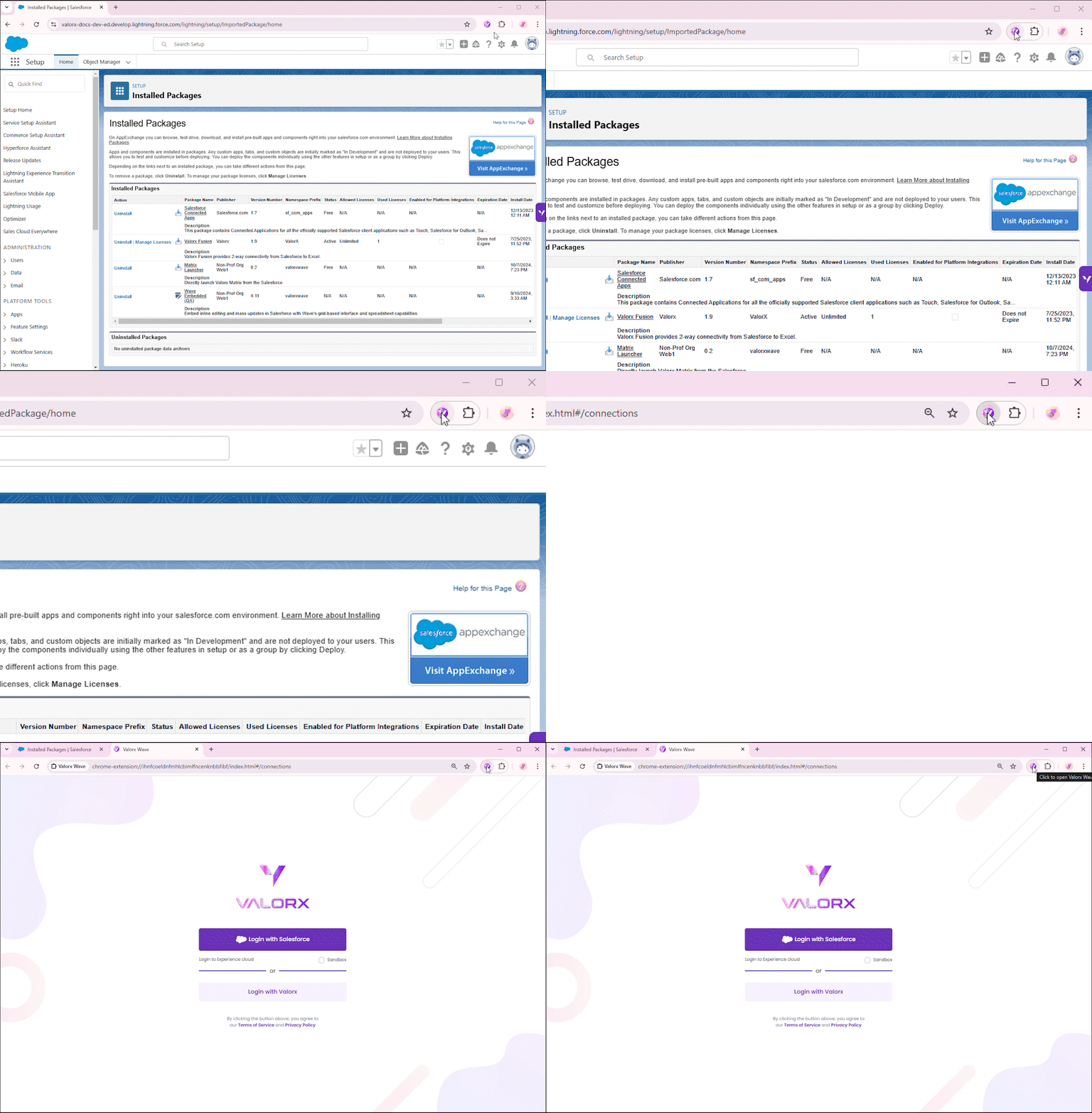
   * If the installation takes a few minutes, wait for it to complete. You can verify the installation by checking the **Installed Packages** section in the **Setup Menu**.<br>

     <figure><img src="https://2237973035-files.gitbook.io/~/files/v0/b/gitbook-x-prod.appspot.com/o/spaces%2F65f4C4H8V5e0YV342mwp%2Fuploads%2FlRmaow7HBRnEsoX0oco3%2FInstalled%20Package%20Highlight.png?alt=media&#x26;token=09723ffe-0d95-43a9-9f08-2f971d08a859" alt=""><figcaption><p>Matrix Launcher at Installed Packages</p></figcaption></figure>

## How to Use the Matrix Launcher

After successfully installing the Matrix Launcher package, follow these steps to set it up and use it within Salesforce.

### **Step 1: Connect the Browser Extension to Your Salesforce Org**

1. Open the Valorx Wave browser extension.

   <div align="left"><figure><img src="https://2237973035-files.gitbook.io/~/files/v0/b/gitbook-x-prod.appspot.com/o/spaces%2F65f4C4H8V5e0YV342mwp%2Fuploads%2FHHyiXCSBbPiSc08up34s%2FOpen%20Wave%20Extension.gif?alt=media&#x26;token=e993a346-27c7-4dcd-b4e9-b9818bf8ceb9" alt=""><figcaption><p>Open Wave Extension</p></figcaption></figure></div>

2. Click the **Login with Salesforce** button and enter your Salesforce credentials.

   <div align="left"><figure><img src="https://2237973035-files.gitbook.io/~/files/v0/b/gitbook-x-prod.appspot.com/o/spaces%2F65f4C4H8V5e0YV342mwp%2Fuploads%2FPtrZ0Y023VdTxPsQpudv%2FLogin%20Wave%20Using%20Salesforce.gif?alt=media&#x26;token=1979b376-4a23-47fc-9c82-9588410e02bf" alt=""><figcaption><p>Login into Wave Extension  with Salesforce</p></figcaption></figure></div>

3. Once logged in, you will be directed to the **Valorx Wave Extension Dashboard** screen. Navigate to the **Matrix** tab.

   <div align="left"><figure><img src="https://2237973035-files.gitbook.io/~/files/v0/b/gitbook-x-prod.appspot.com/o/spaces%2F65f4C4H8V5e0YV342mwp%2Fuploads%2FpvZlM7MsviF0H58falK2%2FRun%20Matrix.gif?alt=media&#x26;token=d9edb89c-a437-4611-88c1-cbe8129e3365" alt=""><figcaption><p>Run Matrix</p></figcaption></figure></div>

### **Step 2: Configure the Matrix into the Extension**

1. To retrieve the Matrix ID, you need to first open and run the Matrix in the browser extension. Once the Matrix is executed, the Matrix ID will be visible in the URL, which you can then use for further configuration.\
   \
   \&#xNAN;*Note: If you don’t have any Matrix created yet, you’ll need to create one to obtain the Matrix ID. Refer to this* [*guide*](https://docs.valorx.com/valorx-wave/matrix/matrix-configuration) *for instructions on creating a new Matrix.*<br>

   <div align="left"><figure><img src="https://2237973035-files.gitbook.io/~/files/v0/b/gitbook-x-prod.appspot.com/o/spaces%2F65f4C4H8V5e0YV342mwp%2Fuploads%2FGeneLt6rSqrUdbmlIdTx%2FMatrix%20ID.gif?alt=media&#x26;token=8f2c0c80-5bf3-4978-b3d9-76ae1b7530e7" alt=""><figcaption><p>Get the Matrix ID</p></figcaption></figure></div>

2. Note down this Matrix ID, as it will be used for further configuration in Salesforce.<br>

   <div align="left"><figure><img src="https://2237973035-files.gitbook.io/~/files/v0/b/gitbook-x-prod.appspot.com/o/spaces%2F65f4C4H8V5e0YV342mwp%2Fuploads%2FIusJxJbWfIOxfg8KxKK8%2FMatrix%20ID.png?alt=media&#x26;token=d91d7876-ed70-40d6-8b74-8ce5442b3cd8" alt=""><figcaption><p>Matrix ID</p></figcaption></figure></div>

### **Step 3: Matrix Launcher Configuration in Salesforce**

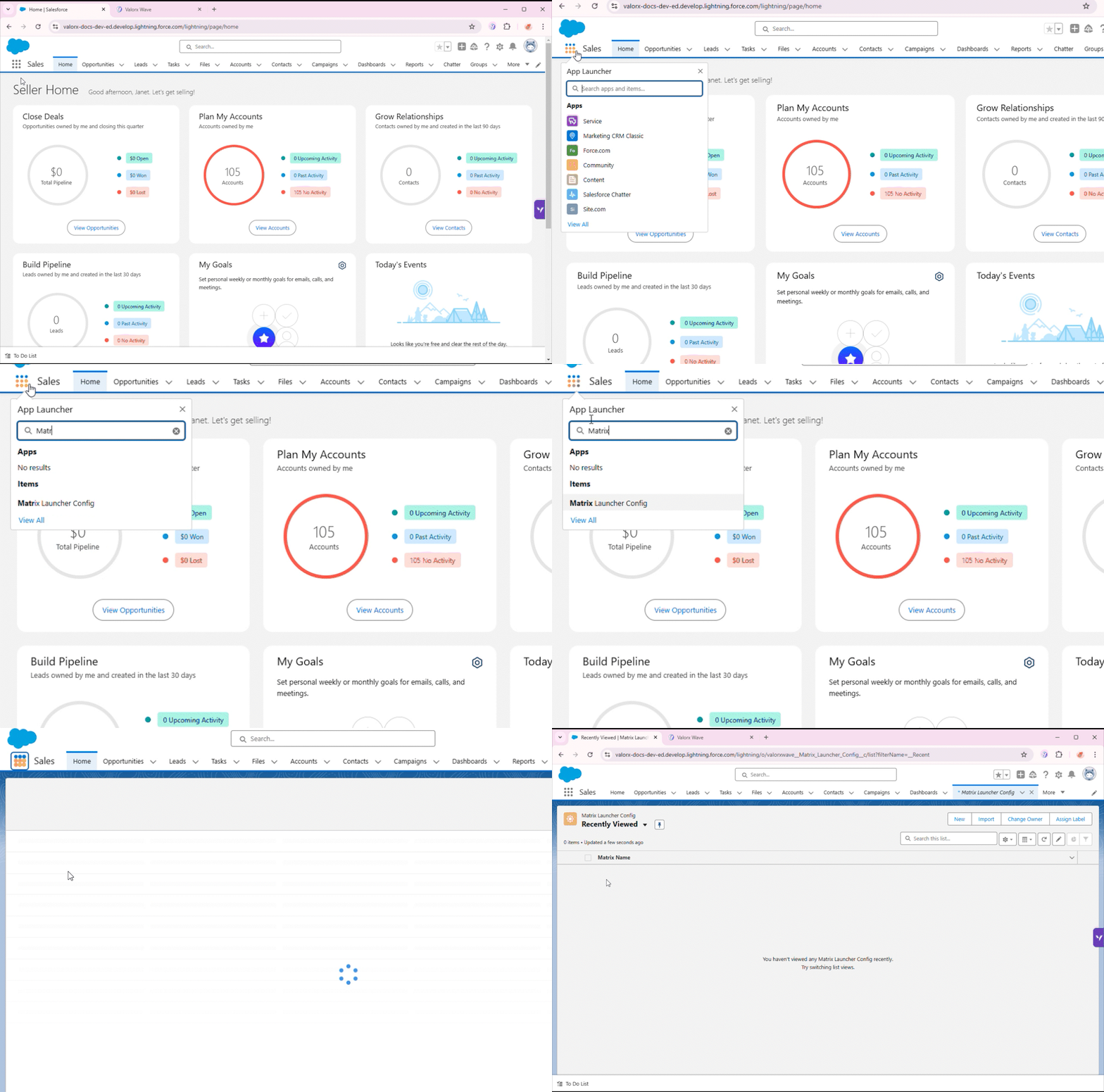
1. Open your Salesforce Org and search for **Matrix Launcher Config** in the App Launcher.

2. Select **Matrix Launcher Config** to open the configuration object.<br>

   <div align="left"><figure><img src="https://2237973035-files.gitbook.io/~/files/v0/b/gitbook-x-prod.appspot.com/o/spaces%2F65f4C4H8V5e0YV342mwp%2Fuploads%2FV68ke3sFIQVX8eIjdJ83%2FSearch%20Matrix%20Launcher.gif?alt=media&#x26;token=30b75d3c-2d79-4d11-8958-8f6a8f3dc228" alt=""><figcaption><p>Matrix Launcher Config</p></figcaption></figure></div>

3. Click the **New** button to create a new configuration record.

4. Fill in the following details:
   * **Matrix Name**: Provide a meaningful name for the Matrix (e.g., “Sales Data Matrix”). This will be referenced in button configurations.
   * **Matrix ID**: Enter the Matrix ID you copied from the extension URL (e.g., 156).
   * **Matrix Type**: Select the appropriate type based on the configuration within the Valorx Wave browser extension.\
     \&#xNAN;***Note:** Ensure the Matrix Name is kept handy as it will be used during the button configuration step*

5. By default, the **Environment** is set to Production. You can change it to Staging if necessary. Then click on the **Save** button.<br>

   <div align="left"><figure><img src="https://2237973035-files.gitbook.io/~/files/v0/b/gitbook-x-prod.appspot.com/o/spaces%2F65f4C4H8V5e0YV342mwp%2Fuploads%2FK2Mn7jYqQKU7G7OoMeWz%2FMatrix%20Laucher%20Config.gif?alt=media&#x26;token=864c86b9-eaa6-4871-b84a-289c0863804f" alt=""><figcaption></figcaption></figure></div>

## Configure the Detail Page Button

To launch a Matrix directly from a Salesforce object (e.g., Contact or Account), you need to create a custom button. Follow these steps to configure a detail page button:

1. **Create a New Button on the Salesforce Object**

   * Navigate to Object Manager and select the **Opportunity** object. (*If you're using a different object, select that specific object instead*.)
   * Click on **Buttons, Links, and Actions** from the left panel.
   * Click the **New Button or Link** button.<br>

     <figure><img src="https://2237973035-files.gitbook.io/~/files/v0/b/gitbook-x-prod.appspot.com/o/spaces%2F65f4C4H8V5e0YV342mwp%2Fuploads%2FVLLcsn7Ymn9Cm9T3ZXri%2FNew%20Button%20or%20Link.gif?alt=media&#x26;token=0bcd07d4-432c-4159-9e23-8fe5cb69a842" alt=""><figcaption><p>Create a new button</p></figcaption></figure>

2. **Configure the Button**

   * Provide a name for your button (e.g., "Launch Matrix").

   * Choose **Detail Page Button** as the display type.<br>

     <figure><img src="https://2237973035-files.gitbook.io/~/files/v0/b/gitbook-x-prod.appspot.com/o/spaces%2F65f4C4H8V5e0YV342mwp%2Fuploads%2FIjPxLCOD3UhnSXOqeaZt%2FLabel%20Name%20of%20Button.gif?alt=media&#x26;token=35bf7d5c-9312-44e2-bd32-5724318a0edc" alt=""><figcaption><p>Add button's name and display type</p></figcaption></figure>

   * In the **Text Area** box, paste the following URL:

     ```bash
     /apex/valorxwave__LaunchMatrix?matrixName=Account Contact&FirstContextId={!Contact.Id}&SecondContextId={!Account.Id}
     ```

   * Replace the **matrixName** parameter with the appropriate Matrix Name you configured in Step 3 (e.g., "Account Contact").

   * Modify the **FirstContextId** and **SecondContextId** parameters based on the objects being used:
     * **FirstContextId**: This is the ID of the main object (e.g., `{!Contact.Id}`).
     * **SecondContextId**: Optional parameter for additional context (e.g., `{!Account.Id}`).

   * Then, click on the **Save** button.\
     \&#xNAN;***Note:** Ensure the **matrixName** parameter is filled in correctly, as it is mandatory.*<br>

     <figure><img src="https://2237973035-files.gitbook.io/~/files/v0/b/gitbook-x-prod.appspot.com/o/spaces%2F65f4C4H8V5e0YV342mwp%2Fuploads%2FP7XWmxQfqX8pjEZSFK5P%2FConfigure%20button%20URL.gif?alt=media&#x26;token=69a129fa-8f15-4416-abe7-9d8f5bcf6a1e" alt=""><figcaption><p>Configure button URL</p></figcaption></figure>

3. **Add the Button to the Object Page Layout**
   * Go to the **Page Layouts** section for the selected object.
   * Choose the page layout you want to modify and click on it.
   * Click on the **Mobile and Lightning Actions tab.**
   * Drag and drop the **newly created button** (Launch Matrix) into the **Salesforce Mobile and Lightning Experience Actions** section.
   * **Save** the layout changes.<br>

     <div align="left"><figure><img src="https://2237973035-files.gitbook.io/~/files/v0/b/gitbook-x-prod.appspot.com/o/spaces%2F65f4C4H8V5e0YV342mwp%2Fuploads%2FgbKqyJ839HHbekoZmwjD%2FSetup%20page%20layout.gif?alt=media&#x26;token=612900b5-7c0e-447b-abe3-69710ed91111" alt=""><figcaption></figcaption></figure></div>

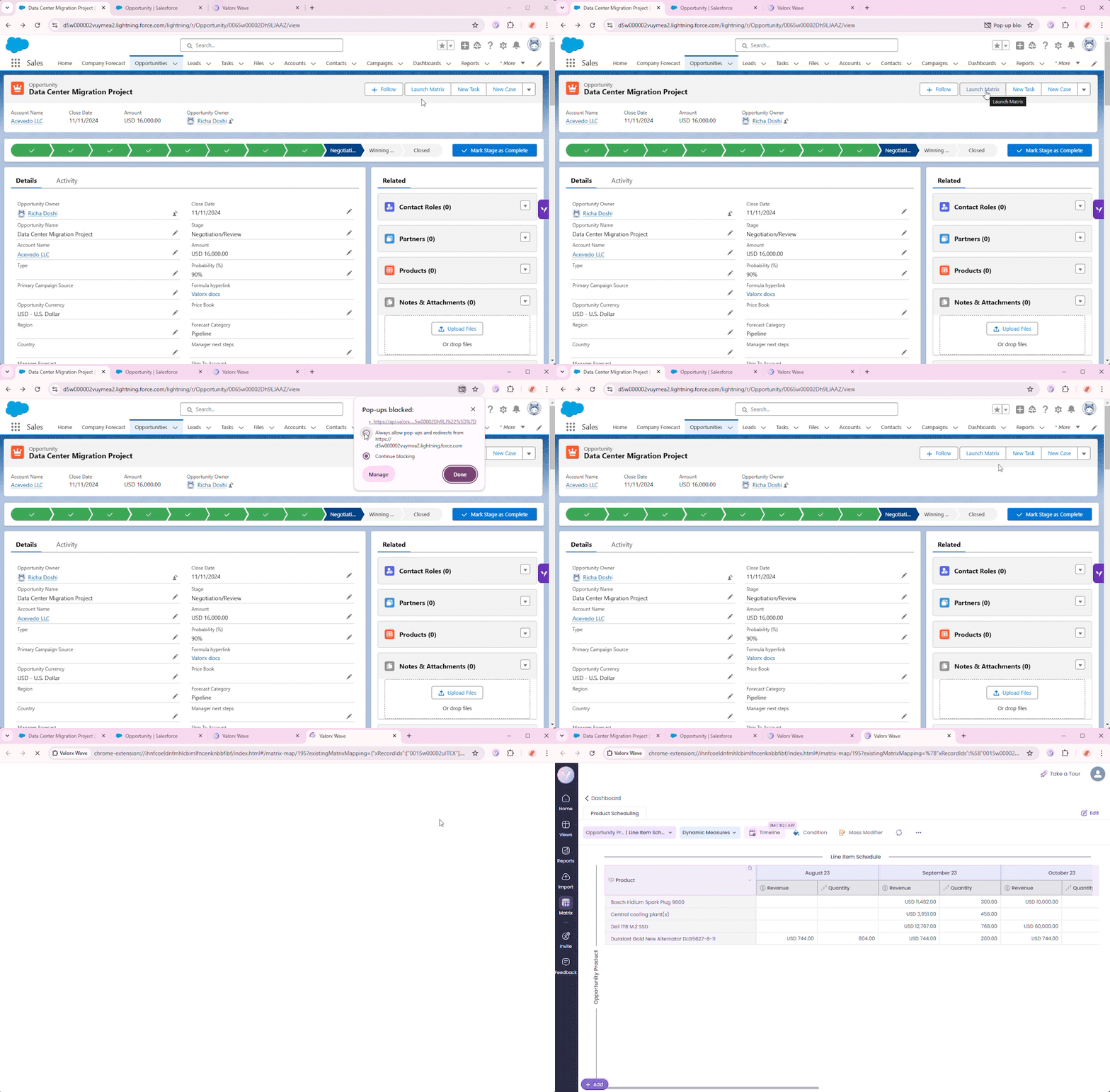
4. **Test the Button**

   * Navigate to the object record (e.g., a Opportunity record) where the button has been added.
   * Click on the new **Launch Matrix** button.<br>

     <figure><img src="https://2237973035-files.gitbook.io/~/files/v0/b/gitbook-x-prod.appspot.com/o/spaces%2F65f4C4H8V5e0YV342mwp%2Fuploads%2FSBCjEEJrtNTxux0umsVG%2FLaunch%20Matrix%20button.gif?alt=media&#x26;token=eed71b24-59ba-46c4-9759-423e4373e9e1" alt=""><figcaption></figcaption></figure>

   ***Note:** If you don’t see the button, check if **Dynamic Forms** are enabled for your Salesforce org. If so, follow the additional steps below to add the button.*<br>

5. **Allow Pop-ups (if required)**
   * If a pop-up blocker prevents the Matrix from launching, click the **Allow pop-ups and redirects** option at the top right of your browser’s URL bar.
   * Click **Done**, reload the page, and try clicking the button again.<br>

     <figure><img src="https://2237973035-files.gitbook.io/~/files/v0/b/gitbook-x-prod.appspot.com/o/spaces%2F65f4C4H8V5e0YV342mwp%2Fuploads%2Fh5r2y3WeQ7OG8elrVIbt%2FPopup%20Enable.gif?alt=media&#x26;token=600a25d9-b27d-4c10-815d-8d2399ddf6d2" alt=""><figcaption><p>Allow pop-ups</p></figcaption></figure>

### Additional Steps

To finalize the button configuration:

1. **Edit the Record Page**\
   Navigate to the Record page, click on the **Setup** icon, and select **Edit Page**.
2. **Add the Custom Button**\
   Select the **Highlight Panel**, then click on the **Add Action** button.
3. **Select the Custom Button**\
   In the **Custom Button** section, locate and select the newly created button. Click **Done** and save your changes.
4. Now, you should be able to see and use your custom button on the Record page.

<div align="left"><figure><img src="https://2237973035-files.gitbook.io/~/files/v0/b/gitbook-x-prod.appspot.com/o/spaces%2F65f4C4H8V5e0YV342mwp%2Fuploads%2FWA8EX3jj91bRkdxV0G5Z%2FAdditional%20Steps%20for%20button%20v2.gif?alt=media&#x26;token=94b9def4-db4f-4f93-89e6-a728a9f385d6" alt=""><figcaption></figcaption></figure></div>