For the complete documentation index, see llms.txt. This page is also available as Markdown.

Matrix Runtime

Matrix Runtime

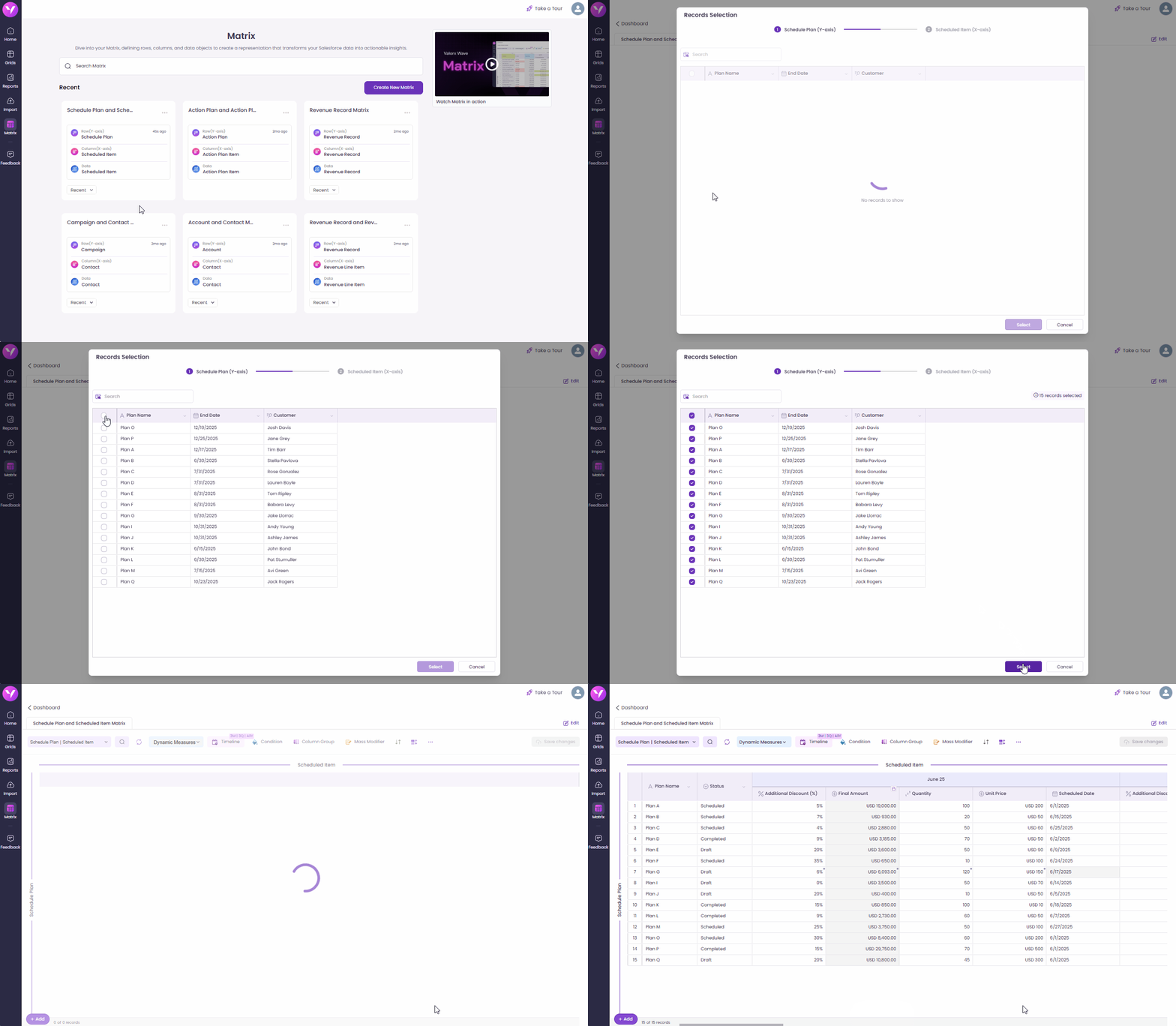
Once the matrix is configured, users can view and edit data in a grid-like interface that supports dynamic measures, conditions, and mass modifications. Standard users can interact with the runtime grid, making edits based on the predefined settings applied during configuration.

Note: Matrix Runtime is available in both Wave Extension and Wave Embedded.

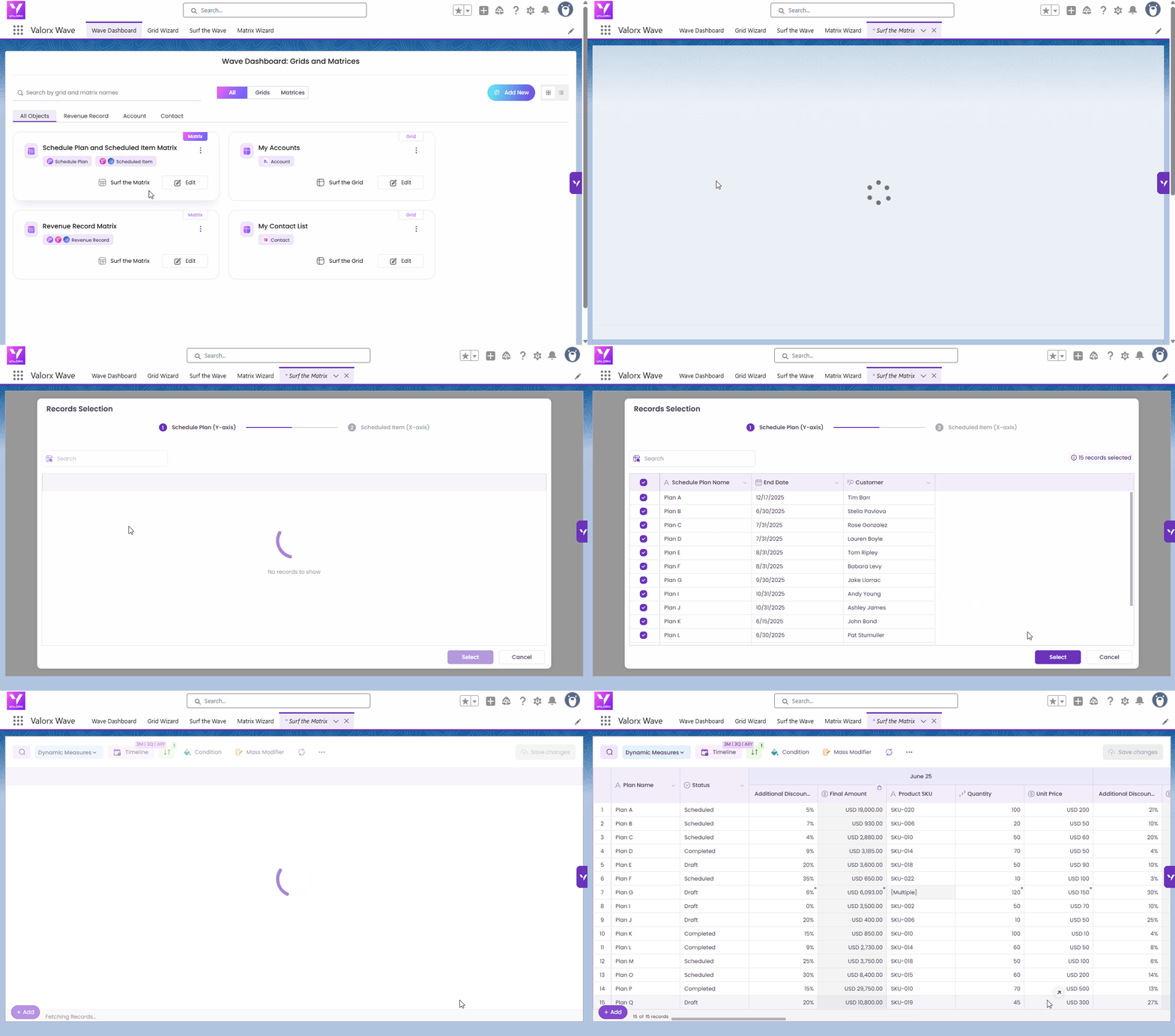
  • In Wave Embedded, click Save and Surf. This opens a temporary Surf the Matrix tab where you can view and interact with the runtime grid.

    Surf The Matrix - Wave Embedded

  • In Wave Browser Extension, click the Run button, select the desired record, and the matrix will launch in runtime mode displaying data based on your configuration.

    Matrix Runtime - Wave Browser Extension

Both runtime environments are designed to help users efficiently work with data while adhering to the configuration rules defined during matrix setup.

Matrix Rendering Limits

To ensure smooth performance and a better user experience, Wave enforces rendering limits on the number of records displayed in the Matrix view.

Single Object Matrix Limits

  • Y-axis (row) max limit: 300,000 records

  • X-axis max limit: 120 columns

Two & Three Object Matrix Limits

  • Y-axis (row) max limit: 20,000 records

  • Data records max limit: 300,000

  • X-axis max limit: 120 columns

If your selected data exceeds these limits, a popup message will appear. After clicking OK, you’ll be redirected to the record selection screen to adjust your selection accordingly.

These limits help maintain optimal performance, especially when working with large datasets.

Edit Records in Runtime

After configuring the matrix, users can view and edit data in a grid-like interface. The editing mode is determined in Matrix Designer. Users can edit in Both (DDV and Inline), DDV only, or Inline only, based on the designer's settings.

Edit in Matrix Detail View

Edit in Data Detail View

Edit in Inline

Edit in Inline

Matrix Runtime Features

The Matrix Runtime mode includes several key features: Recent, Dynamic Measure, Timeline, Condition, and Mass Modifier. Each is explained below:

Recent

Displays the most recently run matrices for quick access, which also appears on the Matrix home screen in the Matrix cards.

Recent Runtime

Run Matrix

Use the Run Matrix button in Runtime Mode to execute the Matrix without returning to the dashboard. The Matrix will run based on the current data and configuration.

Run Matrix

Refresh

To refresh the screen, click on the Refresh icon. Note: Any unsaved data will be lost when refreshing.

Refresh Matrix

Dynamic Measures

This dropdown displays data object fields. Users can view all fields simultaneously or one at a time. Fields appear horizontally or vertically, depending on the orientation set by the designer.

Dynamic Measures

Timeline

Visible when a Date field is set on the X-axis. Users can zoom in and out from years to quarters to months for telescoping or view time intervals in a straight line format. This helps with data forecasting. This must be configured in Matrix Designer.

Telescoping

Timeline - Telescope

Straight Line

Timeline - Straight line

Rules

The Rules feature enhances record visibility and interaction by allowing users to apply visual formatting and interactive behavior based on defined conditions. Users can highlight records, hide data, restrict editing access, and provide contextual cues, making it easier to identify and interact with key data points. Filter by Color for rule-driven filtering is supported on the Y-axis.

Rule in Matrix

Column Group

The Column Grouping tab allows Designers to visually organize Y-axis fields into grouped sections. This helps users quickly understand how related data points are structured within the Matrix.

Mass Modifier

The Mass Modifier feature enables user to edit large quantities of records at once. User can perform mass modifications for selected records or all records.

Mass modifier in Matrix

Sort

The Sort feature improves data analysis by allowing users to organize records based on one or more fields. Users can sort records in ascending or descending order, helping them focus on the most relevant data first. Sorting applies to any data set displayed in the grid, enhancing usability and clarity during review or decision-making.

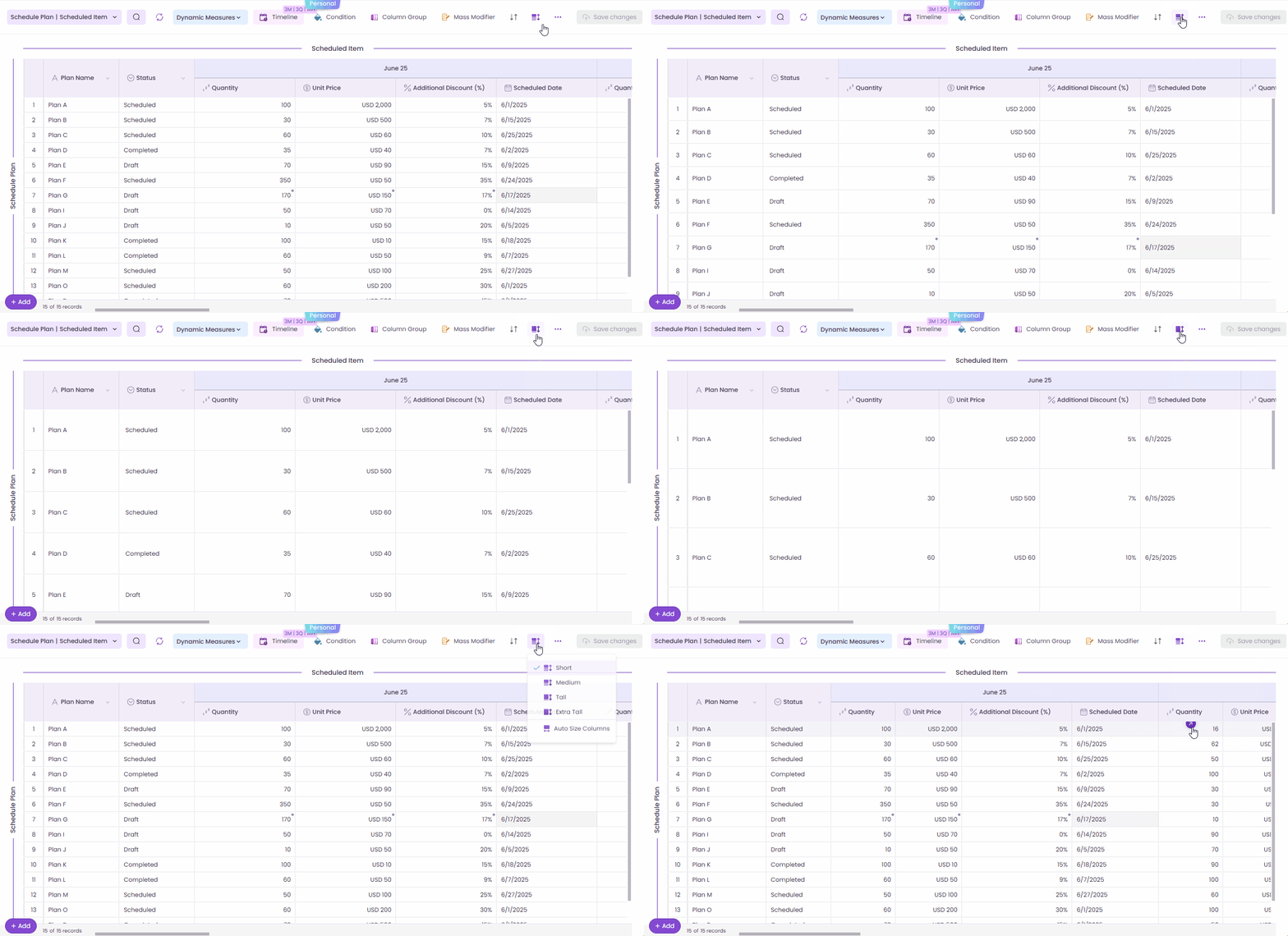
Layout

The Layout tab lets Designers customize the Matrix's appearance by adjusting row height and enabling auto-sizing for columns. These controls ensure better readability and a polished look for large or dense datasets.

More Options ()

Clicking the triple-dot (⋯) icon in the Matrix runtime toolbar opens the More Options menu, which provides access to:

View Details

Displays information about the Y-axis, X-axis, and Data Objects.

Reset Matrix

Appears only when changes have been made to the Matrix grid. Clicking this restores the grid to its original default state by clearing personal customizations.

Reset Matrix

Change Orientation

The matrix orientation can be switched between horizontal and vertical at runtime to suit individual viewing preferences.

Matrix Orientation Toggle

Matrix Import

Import an Excel file directly into your Matrix to update existing records or insert and update new ones, without leaving the Matrix view.

For more information, see the [Matrix Import and Export documentation].

Matrix Export

Matrix Export allows users to export Matrix data to Excel or CSV directly from the runtime Matrix. The export options dynamically adjust based on the Matrix X-axis type and layout, ensuring the exported data matches the Matrix configuration.

For more information, see the [Matrix Import and Export documentation].

Matrix Export to Excel or CSV

Backup Matrix

The Backup Matrix feature lets you save your Matrix configuration as a backup file, so you can easily restore it later.

Backup Matrix

Admin Controls

Admin Controls allows Admin/Designer with quicker access to editing and configuration capabilities. The button displays the available Matrix Configuration steps in a dropdown menu, allowing quick navigation to specific configuration areas.

Admin Controls

Preview Changes

The Preview Changes allows users to view modifications made to a Matrix grid before saving. Users can also revert changes if needed.

Preview Changes

The Matrix feature helps users analyze Salesforce data by organizing it into rows, columns, and data objects. Matrix provides an interactive way to explore and manage data efficiently.

The matrix includes a footer row, similar to the grid, showing aggregated values for all Y-axis columns, data columns, and the Totals column.

By default:

  • The aggregation function for Y-axis fields is Sum.

  • For data columns, the aggregation follows the grouping function configured in Data Config.

  • Users can change the aggregate function displayed in the footer as needed.


Surf The Matrix Tab Visibility in Wave Embedded

In Wave Embedded, some users may not see the Surf the Matrix tab after running a Matrix. This is due to specific Salesforce App Personalization Settings configured in the App Manager. The Matrix itself still renders correctly, and users can access it by clicking Surf the Matrix button in Wave Dashboard or the Save and Surf button in the Matrix Wizard.

To ensure the Surf the Matrix tab appears consistently in Wave Embedded, follow these steps:

  1. Go to Setup in Salesforce.

  2. In the Quick Find box, search for App Manager.

  3. Under the App Name column, locate Valorx Wave.

  4. Click the dropdown arrow next to Valorx Wave, then click Edit.

  5. On App Settings page, click on the App Options.

  6. In the App Personalization Settings section, uncheck the following:

    • Disable end user personalization of nav items in this app

    • Disable temporary tabs for items outside this app

  7. Click Save.

Once updated, Salesforce will display Surf the Matrix as a temporary tab, making it more convenient to revisit or switch between tabs in Wave Embedded.

How to Display Surf the Matrix in the Navigation Bar

Last updated

Was this helpful?