# Nov 23 Release (v24)

### 📢 <mark style="color:blue;">Announcing</mark> <mark style="color:blue;">the November Release</mark>

Valorx Wave is ready once again to elevate your efficiency and productivity within the Salesforce environment. This release encompasses essential upgrades and bug fixes, along with a fascinating new feature.

### <mark style="color:blue;">✨ What's New?</mark>

#### **Share View**

The all-new Wave comes with the Share View feature which enables the users to share the Standard Views, Custom Views and Mapped Report Views with their fellow team members.&#x20;

Users can assign desired view rights to the shared view members such as Can view / Can edit. It also gives the provision to stop sharing any view whenever required, and to remove the access of the shared view from any particular user(s).

* The Share view can be accessed by clicking the Share icon on the Wave Ribbon after opening the specific view that the user intends to share.

> Click the **Share** icon on the Wave Ribbon.

<div align="left"><figure><img src="/files/URDMrskDjFd3vuhwSKZk" alt="" width="137"><figcaption><p>Share Icon</p></figcaption></figure></div>

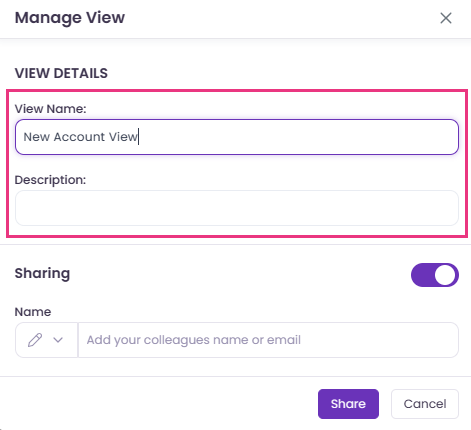
> The **Manage View** pop-up will open. Here the user can change the View Details such as View Name and Description if required.

<div align="left"><figure><img src="/files/WpWjc5a1PkjyVQXXr58J" alt="" width="353"><figcaption><p>Manage View pop-up</p></figcaption></figure></div>

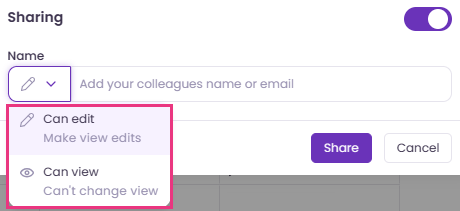
> Select the appropriate view rights - **Can edit** / **Can view,** to be assigned to the member(s).

<div align="left"><figure><img src="/files/1yH5f5yMwCZ2C7yq3LDG" alt="" width="345"><figcaption><p>View Rights</p></figcaption></figure></div>

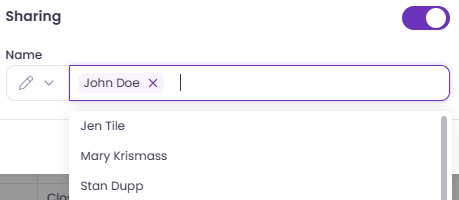
> User can enter the name or email of the colleague(s) that one wishes to share the view with.

<div align="left"><figure><img src="/files/9P4FJ1y9RHZUnC0ZT6xw" alt="" width="344"><figcaption><p>Select member(s) to share the view</p></figcaption></figure></div>

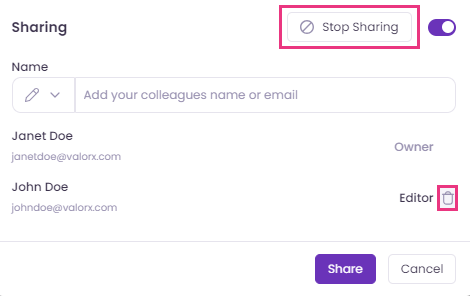
* The user can see the share details by again clicking the Share icon after sharing the view. One can anytime **stop sharing** the view using the 'Stop Sharing' button or **remove** the access of the shared view from any particular user(s) by clicking the 'Delete icon' near any user's name.

<div align="left"><figure><img src="/files/vZND716Fvd12jIY871Vm" alt="" width="353"><figcaption><p>Stop Sharing and Remove Access functions</p></figcaption></figure></div>

* All the members receive an email notification stating the details of the view shared with them and the link to open it. The shared users can also access the shared view from the Shared Views section on the Left Panel in Wave.

***

### <mark style="color:blue;">➕ Enhanced UI / UX Design</mark>

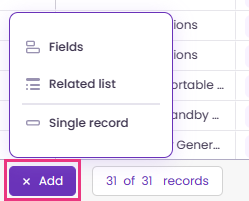
1. There are now more capabilities available in the **Add** button on the Grid View screen.

> Users can now perform multiple functions using the Add button. It facilitates entering a **single record** (new row) in the Grid, Adding **Related List(s)**, and also adding new **Object Fields** in the view.&#x20;

<div align="left"><figure><img src="/files/u2ORs1RAfEj1f3OCduBw" alt="" width="187"><figcaption><p>Add Button</p></figcaption></figure></div>

2. The Column Header Actions drop-down UI has been redesigned.&#x20;

<div align="left"><figure><img src="/files/4eDPwZtRJ0i68Sr2UnTI" alt="" width="302"><figcaption><p>Header Actions drop-down</p></figcaption></figure></div>

> The drop-down is also shown as highlighted with purple color after performing any column level filters for easier visualization.

<div align="left"><figure><img src="/files/qTV8E4qjddONeFrErk4f" alt="" width="563"><figcaption><p>Header Actions drop-down highlighted</p></figcaption></figure></div>

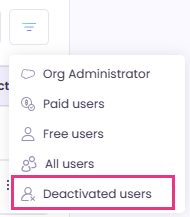
3. Filter in Team Members section of Settings now also provide the option to view **Deactivated users**.

<div align="left"><figure><img src="/files/S01Oy0LO7UhD0exugOCD" alt="" width="143"><figcaption><p>Deactivated users option</p></figcaption></figure></div>

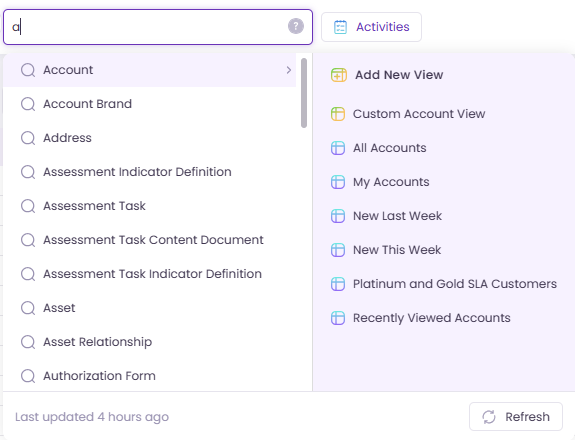
4. There's a new appearance for the Search Object bar.

> Clicking the Search Object bar shows five objects that have been recently searched.

<div align="left"><figure><img src="/files/wZOL20GLSavtWhyQh4Oi" alt="" width="236"><figcaption><p>Search Object bar - Recent Objects</p></figcaption></figure></div>

> The interface while searching for any particular object also appears in a fresh look.

<div align="left"><figure><img src="/files/rWexRSaki4JK5Nf4qqwZ" alt="" width="431"><figcaption><p>Search Object bar</p></figcaption></figure></div>

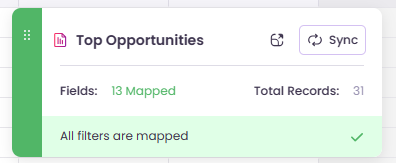
5. The Mapped Report View summary floaty has been beautified.

<div align="left"><figure><img src="/files/z349KjR0jp4OjiNtp2XL" alt=""><figcaption><p>Mapped Report View summary floaty</p></figcaption></figure></div>

6. The Valorx Wave logo has been given a fresh coat of paint, and there's a new shade to its appearance. It also reflects in the Valorx Wave Favicon.

***

### <mark style="color:blue;">🔧 Bug Fixes</mark>

* Attachments added with grid records can be properly accessed after refreshing the screen.
* All Standard salesforce users can now access Wave.
* The challenge with selecting the date in the filter condition has been fixed.
* Filters applied in the Salesforce reports are now accurately reflected in their corresponding Wave Mapped Report View.
* Related List Object gets successfully removed from the Grid View screen after removing the Related List.
* The functioning of the summary floaty in the Group feature has been improved.
* The notification to disable the 'Block third-party cookies' option in the browser settings while using Salesforce now opens accurately after logging out from Wave.
* The count of total licenses available to the user, shown in the General section of Settings, is now updated immediately after purchasing new licenses.


---

# Agent Instructions: Querying This Documentation

If you need additional information that is not directly available in this page, you can query the documentation dynamically by asking a question.

Perform an HTTP GET request on the current page URL with the `ask` query parameter:

```
GET https://docs.valorx.com/valorx-wave/release-notes/wave-browser-extension/archived-release-notes/wave-version-24.md?ask=<question>
```

The question should be specific, self-contained, and written in natural language.
The response will contain a direct answer to the question and relevant excerpts and sources from the documentation.

Use this mechanism when the answer is not explicitly present in the current page, you need clarification or additional context, or you want to retrieve related documentation sections.