> For the complete documentation index, see [llms.txt](https://docs.valorx.com/llms.txt). Markdown versions of documentation pages are available by appending `.md` to page URLs; this page is available as [Markdown](https://docs.valorx.com/valorx-wave/wave-advanced/send-an-email-using-row-action.md).
# Send an Email using Row Action
A simple guide to the Send Email button using row action button.
Wave Embedded’s Row Action feature makes it easy to add useful actions directly to your grids. One of the ways you can use it is to add a **Send Email** button, giving users a quick way to send messages without leaving the grid.
When clicked, the button opens a familiar email window where the recipient is already populated. You can choose a ready-made template, add attachments, and send the email all from the same page.
This guide walks you through how to set up the **Send Email** button using Row Actions.
## Before You Start
Row Actions are available in Wave Embedded. Before adding the **Send Email** button, check the following:
* **Download the Send Email** component and deploy it to your Salesforce org. Once added, it will be available as an option in the Row Action wizard.
* **Set up at least one email address** for your company to send emails from.
* **Activate the email templates** you want your team to use. Only active templates appear in the template list.
{% file src="/files/vBD3lHgtaY9Dmi7v5W13" %}
### What the Send Email Component Supports
The Send Email component provides the following functionality:
* **Default To address** for Contact and Lead grids.
* **Default From address** based on organization-level configuration.
* **CC and BCC** recipient support.
* **Email template** selection.
* **Related To** populated for objects other than Contact and Lead.
* **Attachment** support for outgoing emails.
## Configure the Row Action on the Contact Grid
### Configuration Steps
{% stepper %}
{% step %}
#### Adding the Button
* Select an existing Contact grid or create a new Contact grid.
* Go to the **Actions** tab.
Go to Actions tab
* Click **+ Row Action** button.
* Enter a button label and tooltip, such as **Send Email**.
* Click **Next**.
Set the Label and Tooltip
{% endstep %}
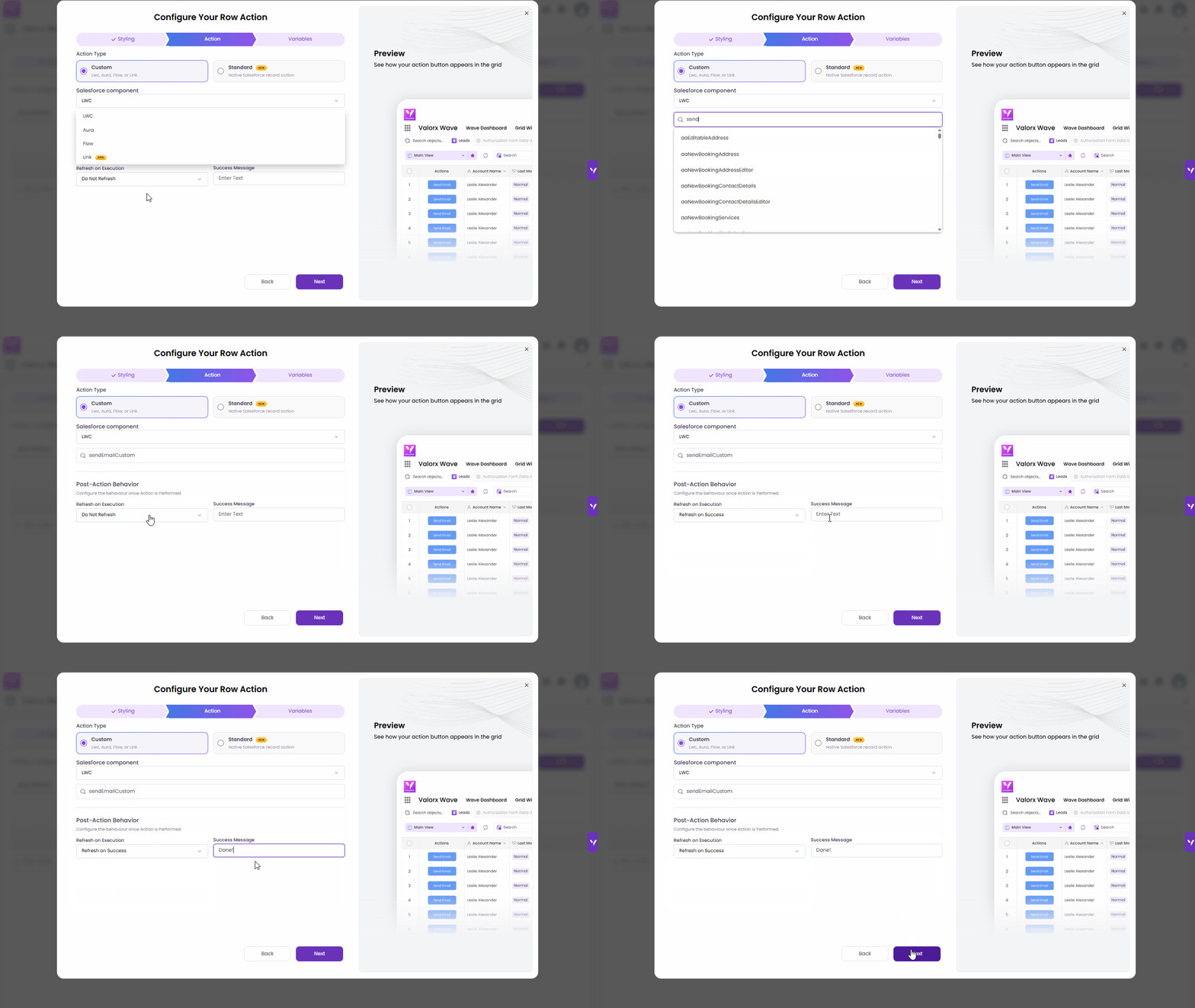
{% step %}
#### Connect the Button to the LWC Component
* In the **Select Salesforce Component** dropdown, select **LWC**.
* Search for and select the **sendEmailCustom** component deployed in the prerequisite step.
* Enter the success message to display after the email is sent.
* Click **Next**.
Connect the Button to the LWC Component
{% endstep %}
{% step %}
#### Set the Variable and Save
* Click **+ Add Variable** and configure the variable as follows:
* **Name:** `recordId`
* **Type:** `String`
* **Parameters:** `Dynamic Field`
* **Dynamic Field:** `Contact Id`
* Click **Save and Finish**.
Set the Variable and Save
**Note:** To add the same row action to another object grid, repeat the configuration steps and select the appropriate record ID field for that object in **Dynamic Field**.
{% endstep %}
{% endstepper %}
***
## What Your Team Will See
When a user clicks the **Send Email** button, the email window opens directly over the grid.
For Contact and Lead grids, the **To** address is populated automatically when an email address is available. Users can also add additional recipients, select a **From** address, choose an email template, edit the message, add **Cc/Bcc** recipients, and attach files.
When the email is ready, click **Send**. The email is sent, the configured success message appears, and the email window closes.
## Source Code
The source code used for the **Send Email** component is provided below. You can refer to it, learn from it, or use it as a starting point for a similar implementation.
Using or modifying the code may require knowledge of Salesforce development and Lightning Web Components (LWC).
**Note:** The source code is provided as-is and has not been edited, reformatted, or otherwise modified for this guide.
{% file src="/files/vBD3lHgtaY9Dmi7v5W13" %}
### Apex Class
classes/SendEmailController.cls
{% code overflow="wrap" %}
```
/**
* SendEmailController
* -------------------
* Server-side controller for the `sendEmail` LWC that replicates the
* standard Salesforce "Send an Email" composer, invoked from a Valorx
* grid Row Action.
*
* Responsibilities:
* - Resolve the recipient (Name / Email) from the row record dynamically.
* - Provide Org-Wide Email Addresses for the "From" picker.
* - Provide active Email Templates and render them (merge-field resolution
* via Messaging.renderStoredEmailTemplate).
* - Send the email (Messaging.SingleEmailMessage) with CC/BCC, attachments,
* and optional "save as activity" logging on the record.
*
* NOTE (managed package): in the `valorxwave` 2GP package the namespace is
* applied automatically at package time, so source references stay un-namespaced.
*/
public with sharing class SendEmailController {
private static final Set MESSAGEABLE_OBJECTS =
new Set{ 'Contact', 'Lead', 'User' };
// ---------------------------------------------------------------------
// Wrapper DTOs (returned to / received from the LWC)
// ---------------------------------------------------------------------
public class EmailContext {
@AuraEnabled public String recipientName { get; set; }
@AuraEnabled public String recipientEmail { get; set; }
@AuraEnabled public String objectApiName { get; set; }
@AuraEnabled public Boolean isMessageable { get; set; } // Contact/Lead/User => can log activity + resolve merge fields
@AuraEnabled public List
### Lightning Web Component — sendEmailCustom
lwc/sendEmailCustom/sendEmailCustom.js
{% code overflow="wrap" %}
```
import { LightningElement, api, wire } from 'lwc';
import { CloseActionScreenEvent } from 'lightning/actions';
import { ShowToastEvent } from 'lightning/platformShowToastEvent';
import getEmailContext from '@salesforce/apex/SendEmailController.getEmailContext';
import getEmailTemplates from '@salesforce/apex/SendEmailController.getEmailTemplates';
import renderTemplate from '@salesforce/apex/SendEmailController.renderTemplate';
import sendEmail from '@salesforce/apex/SendEmailController.sendEmail';
import { MessageContext, publish } from 'lightning/messageService';
import callbackMessage from '@salesforce/messageChannel/valorxwave__callbackMessageChannel__c';
const EMAIL_REGEX = /^[^\s@]+@[^\s@]+\.[^\s@]+$/;
export default class SendEmail extends LightningElement {
// recordId of the row the action was invoked on.
@api recordId;
// Optional: override the email field API name (configurable in the grid action).
@api emailField;
@api relatedToObjects; // optional CSV override of the object list
@wire(MessageContext) messageContext;
relatedObjectType = '';
whatId = '';
invokeValorxCallBack(isSuccess = false) {
const payload = {
status: isSuccess ? 'SUCCESS' : 'ERROR',
};
publish(this.messageContext, callbackMessage, payload);
}
// From
fromOptions = [];
selectedFromAddress = '';
// Templates
templateOptions = [];
selectedTemplate = '';
// Recipients (pill item shape: { label, name })
toRecipients = [];
ccRecipients = [];
bccRecipients = [];
toInput = '';
ccInput = '';
bccInput = '';
showCc = false;
showBcc = false;
nameField = 'Name';
subject = '';
htmlBody = '';
uploadedFiles = [];
isMessageable = false;
targetObjectId;
isLoading = true;
isSending = false;
// ---------------------------------------------------------------- lifecycle
connectedCallback() {
this.init();
}
async init() {
try {
const [ctx, templates] = await Promise.all([
getEmailContext({ recordId: this.recordId, emailFieldOverride: this.emailField }),
getEmailTemplates()
]);
this.fromOptions = (ctx.orgWideAddresses || []).map((o) => ({
label: o.label,
value: o.value
}));
if (this.fromOptions.length) {
this.selectedFromAddress = this.fromOptions[0].value;
}
const objType = ctx.objectApiName;
const isPerson = objType === 'Contact' || objType === 'Lead';
if (isPerson) {
// WhoId branch: the row is the recipient; auto-fill To.
this.targetObjectId = this.recordId;
if (ctx.recipientEmail && EMAIL_REGEX.test(ctx.recipientEmail)) {
this.toRecipients = [{ label: ctx.recipientEmail, name: ctx.recipientEmail }];
}
// Related To stays hidden for Contact/Lead.
} else {
// WhatId branch: the row is the Related To record.
this.whatId = this.recordId;
this.relatedObjectType = objType;
this.nameField = ctx.nameField || 'Name'; // add this line
}
console.log('What Id:'+this.whatId + this.recordId);
console.log('relatedObjectType: '+this.relatedObjectType + objType);
this.isMessageable = isPerson;
this.templateOptions = [
{ label: 'None', value: '' },
...(templates || []).map((t) => ({ label: t.label, value: t.value }))
];
} catch (error) {
this.showError('Could not load the email composer', error);
} finally {
this.isLoading = false;
}
}
get matchingInfo() {
return { primaryField: { fieldPath: this.nameField } };
}
// ---------------------------------------------------------------- getters
get hasToRecipients() { return this.toRecipients.length > 0; }
get hasCcRecipients() { return this.ccRecipients.length > 0; }
get hasBccRecipients() { return this.bccRecipients.length > 0; }
get hasAttachments() { return this.uploadedFiles.length > 0; }
get sendDisabled() { return this.isSending || this.toRecipients.length === 0; }
// ---------------------------------------------------------------- From / template
handleFromChange(event) {
this.selectedFromAddress = event.detail.value;
}
async handleTemplateChange(event) {
this.selectedTemplate = event.detail.value;
if (!this.selectedTemplate) return;
this.isLoading = true;
try {
const rendered = await renderTemplate({
templateId: this.selectedTemplate,
whoId: this.isMessageable ? this.recordId : null,
whatId: null
});
if (rendered.subject) this.subject = rendered.subject;
if (rendered.htmlBody) this.htmlBody = rendered.htmlBody;
} catch (error) {
this.showError('Could not apply template', error);
} finally {
this.isLoading = false;
}
}
handleRelatedTypeChange(event) {
this.relatedObjectType = event.detail.value;
this.whatId = ''; // reset the record when the object type changes
const picker = this.template.querySelector('lightning-record-picker');
if (picker) picker.clearSelection?.();
}
handleRelatedToChange(event) {
this.whatId = this.recordId || '';
}
// ---------------------------------------------------------------- recipient handling
handleToInput(e) { this.toInput = e.detail.value; }
handleCcInput(e) { this.ccInput = e.detail.value; }
handleBccInput(e) { this.bccInput = e.detail.value; }
handleToKeyDown(e) { if (this.isCommit(e)) this.commitTo(); }
handleCcKeyDown(e) { if (this.isCommit(e)) this.commitCc(); }
handleBccKeyDown(e) { if (this.isCommit(e)) this.commitBcc(); }
handleToBlur() { this.commitTo(); }
handleCcBlur() { this.commitCc(); }
handleBccBlur() { this.commitBcc(); }
isCommit(e) {
return e.key === 'Enter' || e.key === ',' || e.key === ';';
}
commitTo() { this.toRecipients = this.addAddresses(this.toRecipients, this.toInput); this.toInput = ''; }
commitCc() { this.ccRecipients = this.addAddresses(this.ccRecipients, this.ccInput); this.ccInput = ''; }
commitBcc() { this.bccRecipients = this.addAddresses(this.bccRecipients, this.bccInput); this.bccInput = ''; }
addAddresses(current, raw) {
if (!raw) return current;
const existing = new Set(current.map((r) => r.name.toLowerCase()));
const result = [...current];
raw.split(/[,;\s]+/).forEach((token) => {
const addr = token.trim();
if (addr && EMAIL_REGEX.test(addr) && !existing.has(addr.toLowerCase())) {
result.push({ label: addr, name: addr });
existing.add(addr.toLowerCase());
} else if (addr && !EMAIL_REGEX.test(addr)) {
this.showToast('Invalid address', `"${addr}" is not a valid email.`, 'warning');
}
});
return result;
}
handleToRemove(e) { this.toRecipients = this.removeAt(this.toRecipients, e.detail.index); }
handleCcRemove(e) { this.ccRecipients = this.removeAt(this.ccRecipients, e.detail.index); }
handleBccRemove(e) { this.bccRecipients = this.removeAt(this.bccRecipients, e.detail.index); }
removeAt(list, index) {
const copy = [...list];
copy.splice(index, 1);
return copy;
}
toggleCc() { this.showCc = !this.showCc; }
toggleBcc() { this.showBcc = !this.showBcc; }
// ---------------------------------------------------------------- body / subject / files
handleSubjectChange(e) { this.subject = e.detail.value; }
handleBodyChange(e) { this.htmlBody = e.target.value; }
handleUploadFinished(e) {
const files = e.detail.files || [];
this.uploadedFiles = [
...this.uploadedFiles,
...files.map((f) => ({ documentId: f.documentId, name: f.name }))
];
}
// ---------------------------------------------------------------- send
async handleSend() {
// Flush any address still sitting in an input box.
this.commitTo(); this.commitCc(); this.commitBcc();
if (this.toRecipients.length === 0) {
this.showToast('Missing recipient', 'Add at least one "To" address.', 'warning');
return;
}
this.isSending = true;
try {
console.log('To Email:: '+this.toRecipients.map((r) => r.name));
const payload = {
recordId: this.recordId,
toAddresses: this.toRecipients.map((r) => r.name),
ccAddresses: this.ccRecipients.map((r) => r.name),
bccAddresses: this.bccRecipients.map((r) => r.name),
subject: this.subject,
htmlBody: this.htmlBody,
orgWideEmailAddressId: this.selectedFromAddress,
saveAsActivity: this.isMessageable,
targetObjectId: this.targetObjectId,
contentDocumentIds: this.uploadedFiles.map((f) => f.documentId),
whatId: this.whatId || null
};
console.log('typeof arg:', typeof payload);
await sendEmail({ req: payload });
this.showToast('Sent', 'Your email was sent.', 'success');
this.invokeValorxCallBack(true);
this.closeComposer();
} catch (error) {
this.showError('Could not send email', error);
} finally {
this.isSending = false;
}
}
handleCancel() {
this.invokeValorxCallBack(false);
this.closeComposer();
}
// ---------------------------------------------------------------- close (works in both contexts)
closeComposer() {
// Native quick-action context:
this.dispatchEvent(new CloseActionScreenEvent());
// Valorx grid action context: bubble a custom close for the host container.
this.dispatchEvent(new CustomEvent('close', { bubbles: true, composed: true }));
}
// ---------------------------------------------------------------- toasts
showToast(title, message, variant) {
this.dispatchEvent(new ShowToastEvent({ title, message, variant }));
}
showError(title, error) {
const message =
error?.body?.message ||
error?.message ||
'An unexpected error occurred.';
this.showToast(title, message, 'error');
}
}
```
{% endcode %}
lwc/sendEmailCustom/sendEmailCustom.html
{% code overflow="wrap" %}
```