# Lightning Pages

## **Overview**

Adding a Valorx Grid to a Salesforce Lightning Page allows you to view and interact with your data directly within Salesforce.\
You can place a grid on an **App Page**, **Home Page**, **Record Page**, or inside a **Tab** or **Subtab** on a Lightning Page.

## About Valorx Grids

### Valorx Grid

Users can publish Valorx Grids across different Salesforce pages using the Lightning App Builder. This makes the grids easily accessible and interactive for other users within Salesforce.

A **Valorx Grid** displays data from a selected object, independent of the record being viewed. Use this option when you want to show grids that are not tied to a parent record.

<figure><img src="https://2237973035-files.gitbook.io/~/files/v0/b/gitbook-x-prod.appspot.com/o/spaces%2F65f4C4H8V5e0YV342mwp%2Fuploads%2FPROyGU0l9ECO5ltZRWlg%2FValorx%20Grid%20App%20Page.gif?alt=media&#x26;token=fb06e3eb-5b0f-44ef-89fd-fe0fee72ff51" alt=""><figcaption><p>Valorx Grid in App Page</p></figcaption></figure>

### Valorx Related Grid

A **Valorx Related Grid** is designed for use on **Record Pages**. It displays data that is directly related to the current record through a lookup relationship.

For example, on an **Account Record Page**, you can add a Related Grid of **Opportunities**. The grid will automatically filter to show only the Opportunities linked to that Account, using the record’s ID and the lookup relationship (e.g., AccountId).

<figure><img src="https://2237973035-files.gitbook.io/~/files/v0/b/gitbook-x-prod.appspot.com/o/spaces%2F65f4C4H8V5e0YV342mwp%2Fuploads%2F4tQEG3AAUusssno5VCpu%2FValorx%20Related%20Grid%20Page.gif?alt=media&#x26;token=f16919d6-247b-4ddc-aa06-ba6caccf3b01" alt=""><figcaption><p>Valorx Related Grid in Account Record Page</p></figcaption></figure>

***

## Adding Valorx Grid/Related Grid

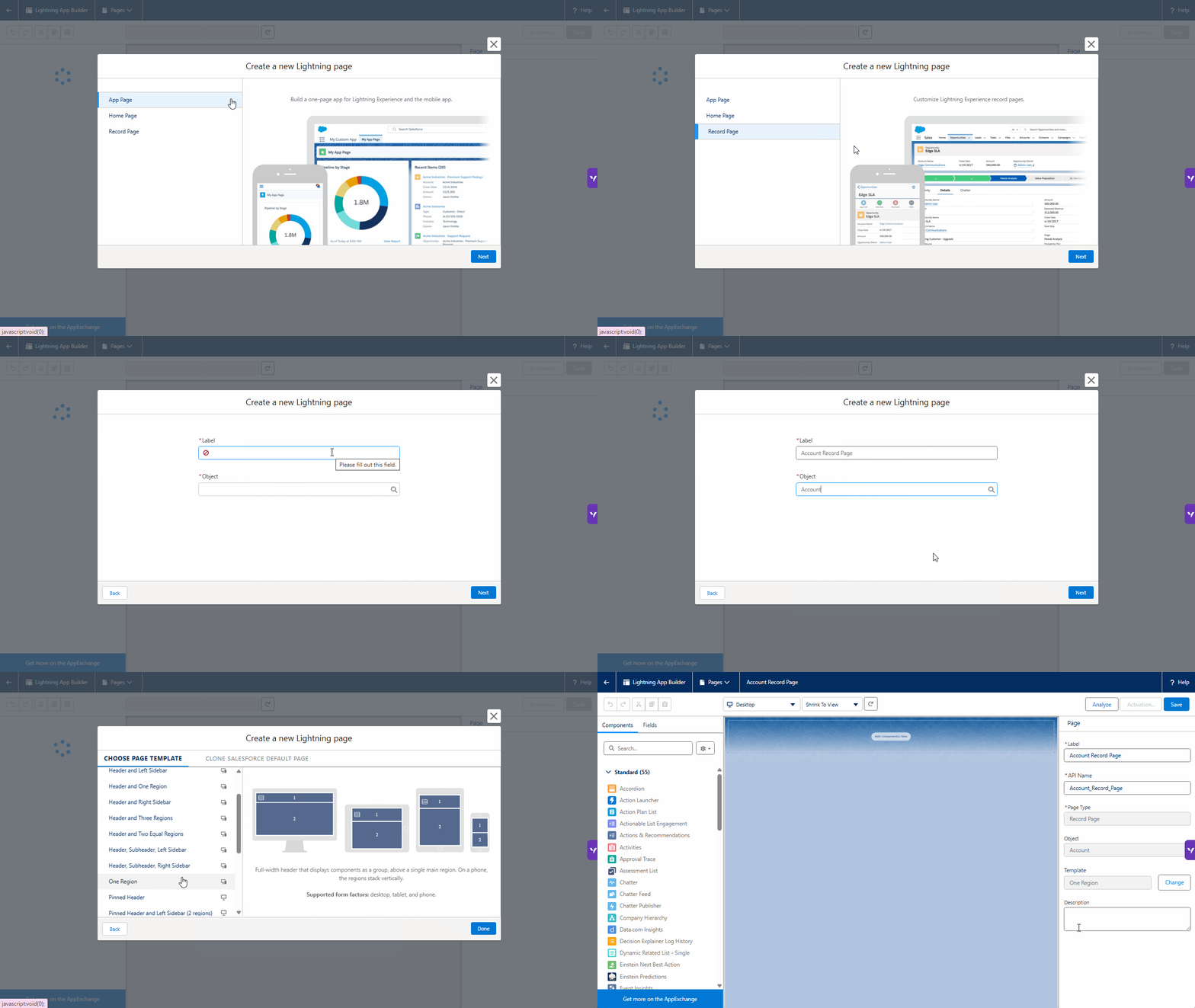
You can add Valorx Grid to **App Pages**, **Home Pages**, and **Record Pages** using Lightning App Builder.  Below show the step by step how to add Valorx Grid to the Lightning Page.

{% stepper %}
{% step %}
**Open Lightning App Builder and Create a Page**

On the **Create a New Lightning Page** screen:

* **App Page** → select **App Page**, then click **Next**.
* **Home Page** → select **Home Page**, then click **Next**.
* **Record Page** → select **Record Page**, then click **Next**.

Enter a label for the page.

* For Record Pages, also select the object you want to use.

Choose the Page Template.

* **Tips:** Choose the **One Region** template (recommended for the largest canvas).

Then, click **Done**.

<figure><img src="https://2237973035-files.gitbook.io/~/files/v0/b/gitbook-x-prod.appspot.com/o/spaces%2F65f4C4H8V5e0YV342mwp%2Fuploads%2FXAscHEWSxurfozArAEeg%2FChoose%20the%20page.gif?alt=media&#x26;token=b3c9c947-bb5f-4590-93c0-2532b4761602" alt=""><figcaption></figcaption></figure>
{% endstep %}

{% step %}
**Add and Configure Valorx Grid**

In the **Components** panel, scroll down to the **Custom – Managed** section. Drag and drop the correct component:

* **App Page** → *Valorx Grid*
* **Home Page** → *Valorx Grid*
* **Record Page** → *Valorx Grid and Valorx Related Grid*

Once you add a **Valorx Grid** or **Valorx Related Grid**, use the right-hand panel to configure the settings.

**Common Settings (Available in Both Components)**

* **Grid** → Select the grid you want to display from the dropdown.
* **Allow Changing Grids** → Enable this option to let users switch to a different grid within the same object.
* **Height (px)** → Define the display height of the grid.

<figure><img src="https://2237973035-files.gitbook.io/~/files/v0/b/gitbook-x-prod.appspot.com/o/spaces%2F65f4C4H8V5e0YV342mwp%2Fuploads%2Fh1q3cek2gYWMfta9dxdn%2FValorx%20Grid.gif?alt=media&#x26;token=1a931e09-d79b-41c4-8db6-bf98e86de874" alt=""><figcaption><p>Add Valorx Grid</p></figcaption></figure>

#### Additional Settings (Valorx Related Grid Only)

* **Relationship Name** → Defines the lookup field that links the related object to the parent record.
  * Example: To show Opportunities related to an Account, enter the API name of the lookup field on Opportunity that connects it to Account (usually `AccountId`).
* **RecordId (Optional)** → Specify a record ID if you want to predefine which record the grid should display.

<figure><img src="https://2237973035-files.gitbook.io/~/files/v0/b/gitbook-x-prod.appspot.com/o/spaces%2F65f4C4H8V5e0YV342mwp%2Fuploads%2FkR7rtEx3x40EMSXezMw1%2FValorx%20Related%20Grid.gif?alt=media&#x26;token=9e61f8dc-3811-4326-9a7d-405694f68052" alt=""><figcaption><p>Add Valorx Related Grid</p></figcaption></figure>
{% endstep %}

{% step %}
**Save and Activate**

1. Click **Save**.
2. When prompted, click **Activate**.
3. In the activation window, choose how to assign the page:
   * **Org Default** → Replace the default page for all users.
   * **App Default** → Replace the default page for selected apps.
   * **App and Profile** → Assign the page to specific apps and profiles.

**Your page is now ready for your Lightning Experience users!**

<figure><img src="https://2237973035-files.gitbook.io/~/files/v0/b/gitbook-x-prod.appspot.com/o/spaces%2F65f4C4H8V5e0YV342mwp%2Fuploads%2Fv4Uv8jsREIJMxcVDUpTr%2FSave%20and%20Activate.gif?alt=media&#x26;token=c3229c3a-3e8f-4376-87ef-5d58429efdc2" alt=""><figcaption></figcaption></figure>
{% endstep %}

{% step %}
**Integrate A Page with A Grid into Any App** *(For App Page Only)*

After activating your App Page, you can make it available in a Salesforce app:

1. Click **Activation**.
2. In the **Activation: Grid Page** popup, go to the **Lightning Experience** tab.
3. Select the target app (for example, *Sales*).
4. Click **Add Page to App**.
5. Click **Save** to confirm.&#x20;

The App Page you created (with the Valorx Grid) will now be **added to the selected Salesforce app** (e.g., Sales app).

<figure><img src="https://2237973035-files.gitbook.io/~/files/v0/b/gitbook-x-prod.appspot.com/o/spaces%2F65f4C4H8V5e0YV342mwp%2Fuploads%2FUo7JPhj0aJNzo0GJrUiO%2FActivate%20Lightning%20Experience.gif?alt=media&#x26;token=ddb0e1b2-2714-4298-8eed-2ab84bb407d9" alt=""><figcaption><p>Add the App page to the Salesforce app</p></figcaption></figure>
{% endstep %}
{% endstepper %}

### Preview in Salesforce Pages

Once you’ve published your grid, here’s how it will look depending on where you’ve placed it:

* **App Page** – The grid appears as a standalone workspace, letting users interact with data directly.<br>

  <figure><img src="https://2237973035-files.gitbook.io/~/files/v0/b/gitbook-x-prod.appspot.com/o/spaces%2F65f4C4H8V5e0YV342mwp%2Fuploads%2FBJPEo4FhKC0zOOGtV2VF%2FApp%20Page.png?alt=media&#x26;token=ea1115a1-6382-4b75-b4f2-3f94e1fe1e00" alt=""><figcaption><p>Valorx Grid in App Page</p></figcaption></figure>

* **Home Page** – The grid shows up alongside other dashboard components, giving quick access to key data.

  <figure><img src="https://2237973035-files.gitbook.io/~/files/v0/b/gitbook-x-prod.appspot.com/o/spaces%2F65f4C4H8V5e0YV342mwp%2Fuploads%2FS7kdxQXgFFsLVbEWXsmq%2FHome%20Page.png?alt=media&#x26;token=a2f2557a-54b1-49fc-ac77-be5745c62901" alt=""><figcaption><p>Valorx Grid in Home Page</p></figcaption></figure>

* **Record Page** – The grid displays data related to the record you’re viewing (e.g., Opportunities on an Account).

  <figure><img src="https://2237973035-files.gitbook.io/~/files/v0/b/gitbook-x-prod.appspot.com/o/spaces%2F65f4C4H8V5e0YV342mwp%2Fuploads%2FKlW4ZYQYcuKAUeOAhz1v%2FRecord%20Page.png?alt=media&#x26;token=7275a6cd-4261-4674-a6de-658bfe2639bb" alt=""><figcaption><p>Valorx Grid in Record Page</p></figcaption></figure>

***

## Adding to Tabs or Subtabs

Valorx Grids can be embedded within tabs or subtabs on **Lightning Page** to enhance data accessibility. Follow the steps below to add and configure Valorx Grids inside custom tabs.

{% stepper %}
{% step %}
&#x20;**Add a Tab to the Lightning Page**

* Open the desired **Lightning Page** in **Lightning App Builder**.
* Drag the **Tab** component onto the page.
* Click on the newly added tab and set the **Tab Type** to **Custom**.
* Enter a meaningful name for the tab (e.g., **Hot Grid**).
* Click **Done** to save the tab settings.

<figure><img src="https://2237973035-files.gitbook.io/~/files/v0/b/gitbook-x-prod.appspot.com/o/spaces%2F65f4C4H8V5e0YV342mwp%2Fuploads%2FpIzPmQzA1Ws3R05DwXWT%2FEmbed%20Grid%20to%20Tab%20p1.gif?alt=media&#x26;token=60d5d79b-4829-43f7-b471-31f9b72f3fc7" alt=""><figcaption><p>Add a Tab to the Lightning Page</p></figcaption></figure>
{% endstep %}

{% step %}
**Configure Valorx Grids on Tabs**

* Click on the **Hot Grid** tab and add the **Valorx Grid** component.
* Select and configure the grid for **Hot Grid:**
  * **Valorx Grid:** Select the Valorx Grid you created in the Wave Dashboard.
  * **Allow changing grids?:** Deselecting this option disables the Grid Selection dropdown.
  * **Height (px):** Enter the desired height for the grid in pixels.
* Click on the **Warm Grid** tab and configure the **Warm Grid**.

<figure><img src="https://2237973035-files.gitbook.io/~/files/v0/b/gitbook-x-prod.appspot.com/o/spaces%2F65f4C4H8V5e0YV342mwp%2Fuploads%2FtjGbXIRN4AiAr8OpqYYO%2FEmbed%20Grid%20to%20Tab%20p2.gif?alt=media&#x26;token=9910b9dc-746e-4fd2-ad3c-19b0a2478887" alt=""><figcaption><p>Configure Valorx Grid on Tabs</p></figcaption></figure>
{% endstep %}

{% step %}
**Save and Activate the Page**

* Click **Save** in the top-right corner.&#x20;
* Click **Activate** to publish the changes if the Lightning Page is not yet active.

<figure><img src="https://2237973035-files.gitbook.io/~/files/v0/b/gitbook-x-prod.appspot.com/o/spaces%2F65f4C4H8V5e0YV342mwp%2Fuploads%2FDkTZdYYs6vAyaznTUGDv%2FEmbed%20Grid%20to%20Tab%20p3.gif?alt=media&#x26;token=b974a2a6-9c15-4a0d-a15d-e951360df4a4" alt=""><figcaption><p>Save and activate the page</p></figcaption></figure>
{% endstep %}

{% step %}
**Access the Lightning Page**

Your Valorx Grids are now successfully embedded within the Lightning Page tabs! 🚀

<figure><img src="https://2237973035-files.gitbook.io/~/files/v0/b/gitbook-x-prod.appspot.com/o/spaces%2F65f4C4H8V5e0YV342mwp%2Fuploads%2FguJbFBJ7fPZCfUv7ZSQR%2FEmbed%20Grid%20to%20Tab%20p4.gif?alt=media&#x26;token=5dda7413-be95-4765-af9f-7e2602b5b0bd" alt=""><figcaption><p>Access the Lightning Page</p></figcaption></figure>
{% endstep %}
{% endstepper %}

***

## Quick Method: Edit an Existing Page

You can also add Valorx Grid directly to an existing page without creating a new one:

1. From **Setup c**lick **Edit Page**. This will open the page in Lightning App Builder.
2. In the **Components** panel, scroll to **Custom – Managed** and drag the **Valorx Grid** (or *Valorx Related Grid* depending on page type) into the layout.
3. Select your desired **grid configuration** from the dropdown.
4. Adjust settings such as **Relation Name** and **Height**, if applicable.
5. Click **Save**, then **Activate** the page to apply changes.

💡 *This method is quicker when you just want to add or update a grid on an existing Lightning Page.*

<figure><img src="https://2237973035-files.gitbook.io/~/files/v0/b/gitbook-x-prod.appspot.com/o/spaces%2F65f4C4H8V5e0YV342mwp%2Fuploads%2FpsHRsEZmYGRk09sFALrM%2FQuick%20Add%20Grid.gif?alt=media&#x26;token=04e86aba-d178-43cf-9d02-7cc3e2e3c12a" alt=""><figcaption></figcaption></figure>